Time: about 4 minutes · Plan: Free, every plan · You'll need: the Broadcasteer Studio (5.0.5 or later) and a Today's Plan with something in it
On the Broadcast tab, click SLIDES on the ACTIVE ITEM dock's bar, and Today's Plan opens as slides: every part of every song, every verse of a reading and every page of a PDF or PowerPoint, drawn the way the screen will show them. Click any slide and it goes on the screen. The arrow keys carry on from there, right through the service.
Step 1: Switch the Active Item dock to SLIDES
On the Broadcast tab, the ACTIVE ITEM dock has two buttons on its bar, ITEM and SLIDES. Click SLIDES. The dock's title changes to PLAN SLIDES, and it stays that way on this computer until you click ITEM again.
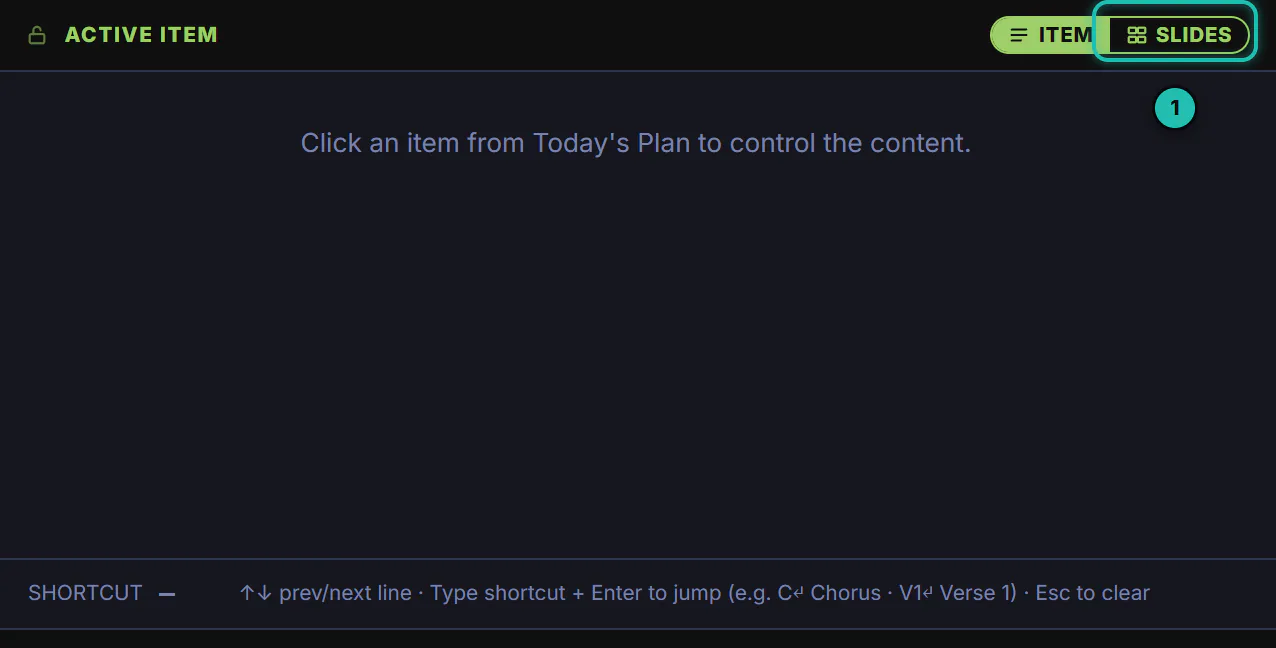
Switching changes nothing on the screen. The slides only show you the plan until you click one.
Step 2: Look over the whole service
Every item in TODAY'S PLAN becomes a row of slides, under its Section Header. A song has a slide for each part that goes up, in the order it's sung, with the part's name above it (V1 Verse 1). A reading has a slide per verse, and a PDF or PowerPoint a slide per page. Each row carries a badge (BLOCK, SCRIPTURE, PDF) and says how many slides it holds.
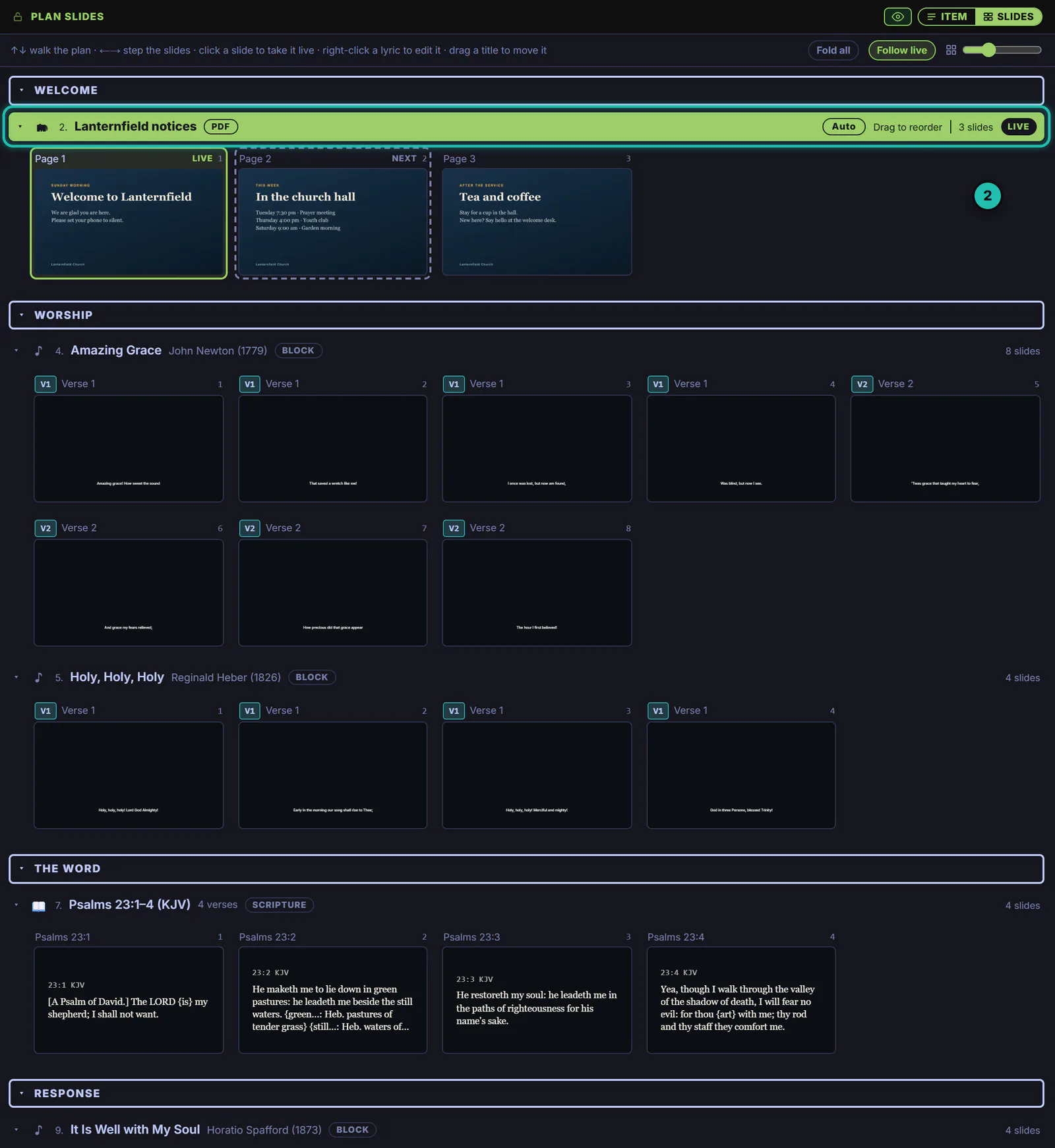
This is a Sunday I set up for Lanternfield Church: a notices PDF, three hymns and Psalm 23, under four Section Headers. The song slides look small because each one is drawn the way the screen draws it... the slider at the right end of the top row makes them bigger, and dragging the dock's edges gives it room. I widened mine for these pictures.
If a PDF or PowerPoint shows numbers instead of its pages, click its first page once. The pictures show after the deck has been opened.
Step 3: Click a slide to put it on the screen
Click any slide. It goes on the screen, its row's bar lights up with LIVE at the end, and the slide itself says LIVE. The slide the next → will bring up has a dashed outline and says NEXT.
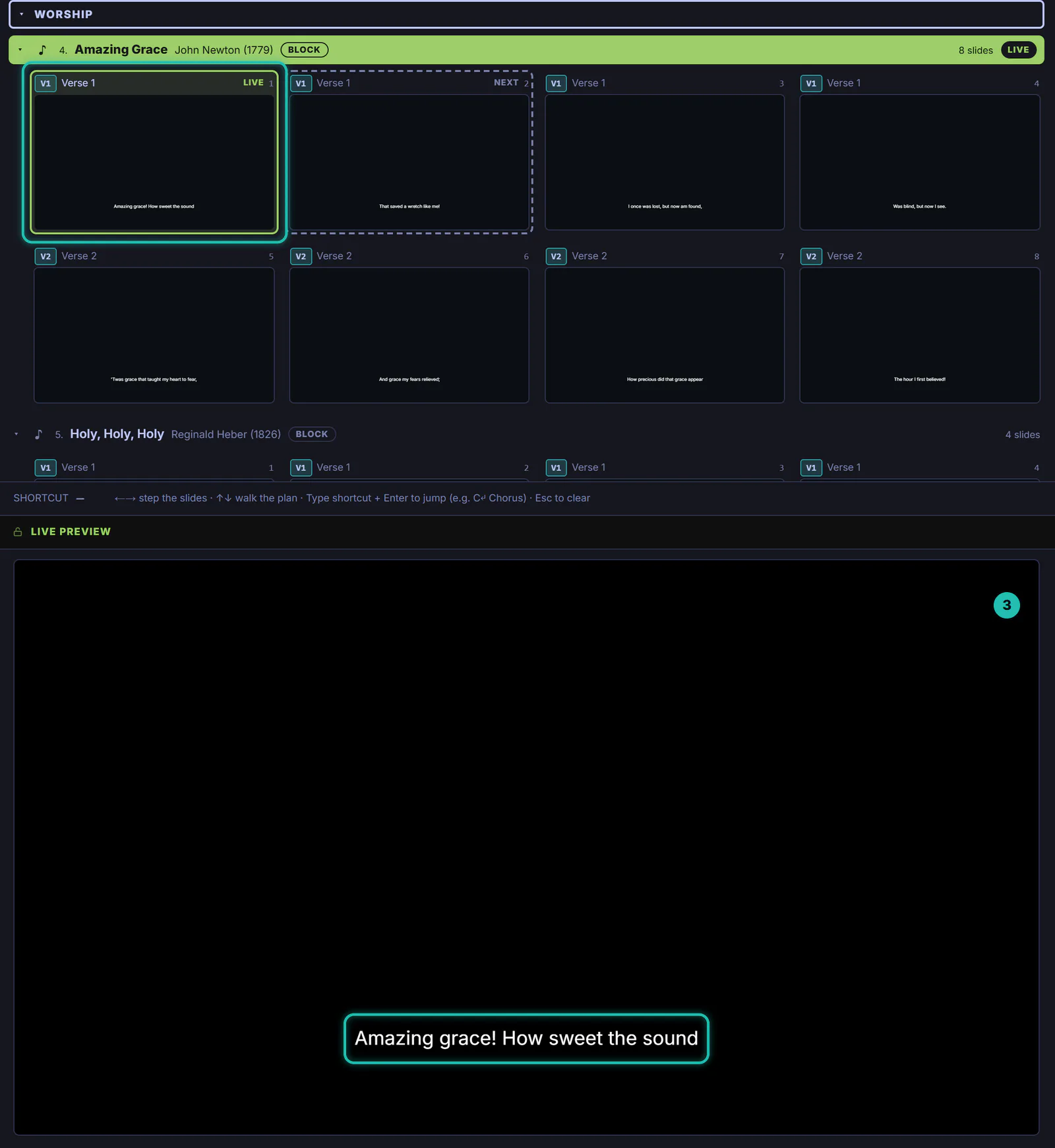
Follow live in the top row keeps the slide that's up in view as you go, so the dock scrolls by itself.
Step 4: Move through the service with the arrow keys
→ brings up the next slide and ← the one before. At the end of an item, → carries on into the next item's first slide, so one key takes you through the whole service. A clicker's Page Down and Page Up do the same as → and ←.
↓ and ↑ jump to the next or previous item. A reading puts its first verse up straight away; a song waits for → or a click. In ITEM view the arrows work the other way round: ← and → walk the plan, ↑ and ↓ step the lines.
Step 5: Fold the parts you don't need to see
Click a Section Header to fold its whole section into one band. The band says how many items it holds, and LIVE when the item on the screen is inside it. Click an item's title to fold just that item's slides. Fold all in the top row folds every section at once, and then reads Unfold all.
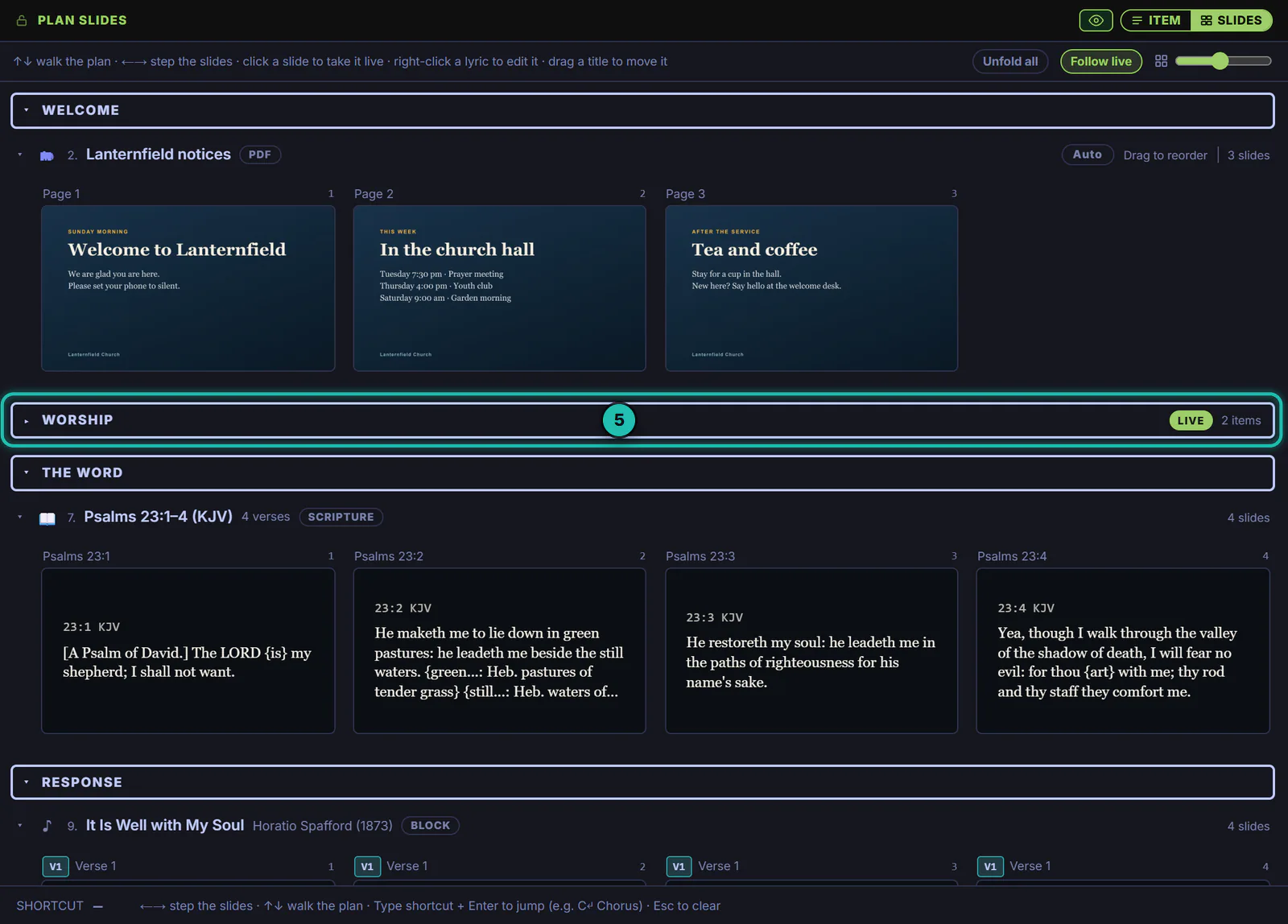
Folds are kept for that plan on this computer, so a long service opens the way you left it.
Step 6: Drag to change the order
Drag an item's title bar up or down, and a line shows where it will land. Drag a Section Header and its whole section moves with it, landing between sections. TODAY'S PLAN changes to the same order.
A deck's pages can change order too: drag a page inside its row (the row says Drag to reorder), and Reset order puts them back. Auto on a deck's row sets up its automatic advance, and ▶ Start runs it, putting the deck on the screen first if it isn't up yet.
If it doesn't work
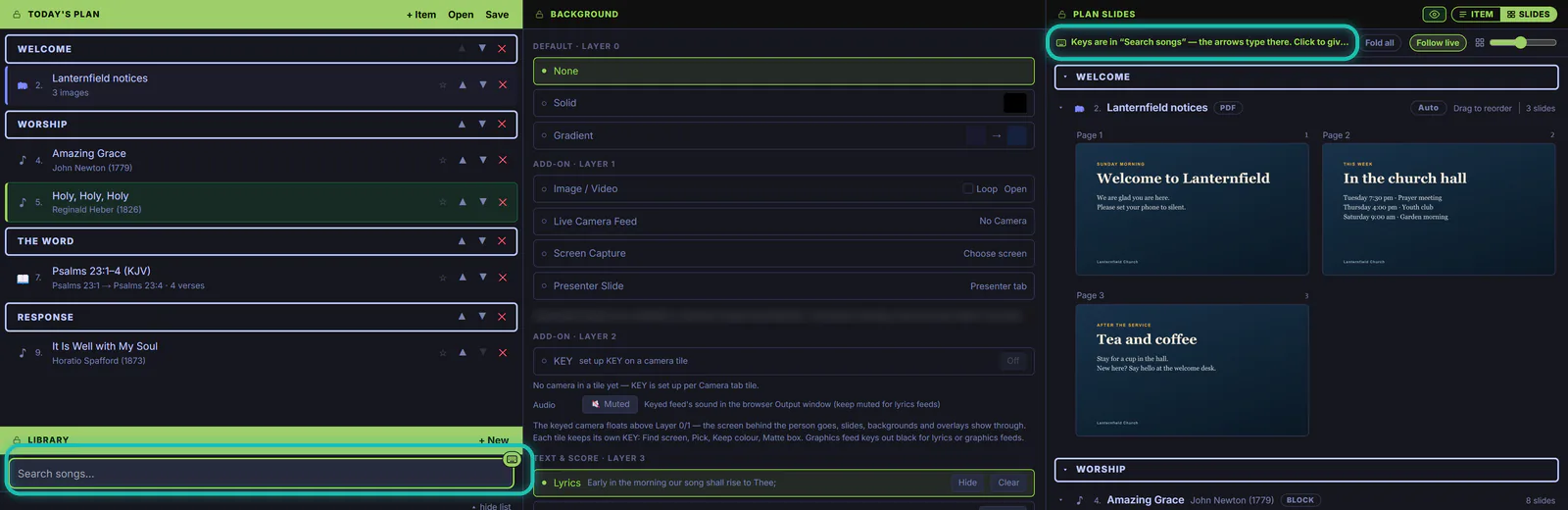
- The arrows type in a box instead of moving the slides. That box has the keys. It gets a ring and a small keyboard badge, and the top row of Plan Slides says the keys are in it. Click that note, or click a slide, and the arrows move the slides again.
- The first slide of a song comes up with no words, straight after a deck page. The slide says LIVE but the screen stays empty. Click the same slide again and the words go up.
- A PDF or PowerPoint shows numbers instead of its pages. Click its first page once. The pictures show after the deck has been opened.
- The words on the slides are too small to read. Drag the slider at the right end of the top row, or drag the dock's edges to give it more room.
- The arrows stay inside one song and never reach the plan. That song was opened from the Library, not from Today's Plan. Click a slide in Plan Slides and the arrows walk the plan again.