
Time: about 10 minutes before the service · Plan: Free, every plan (one phone camera and 720p on Free) · You'll need: the laptop and phone you use on Sunday, your YouTube channel connected in Settings › Live Stream, and a way to send the family a link
Use the same laptop and phone as Sunday. In Settings › Live Stream › Stream Presets, give the stream the occasion's name and set Privacy to Unlisted, so only people with the link can watch. Put one phone at the back, the hymn on the screen, and press REC so the family gets their own copy. Then go live and send them the link. The Free plan does all of it.
Step 1: Name the stream and make it Unlisted
Open Settings › Live Stream. In the middle column, Stream Presets holds what YouTube shows when you go live. Type the occasion in Title: "Memorial service for Margaret Lim", or "The wedding of" and the couple's names. Then set Privacy to Unlisted.
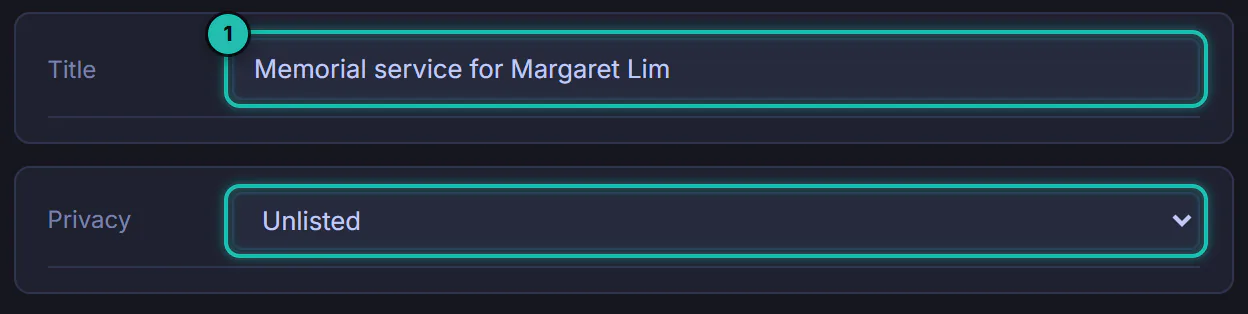
Unlisted means only people with the link can watch. Public is open to anyone who finds your channel. Changes save by themselves, and Broadcasteer uses these presets when it creates the broadcast on your connected channel (the first live stream tutorial shows how to connect it).
If you go live with a stream key instead of a connected channel, set Unlisted in YouTube Studio too. The preset travels with a connected channel only.
Step 2: Put one phone at the back, facing the front
One phone camera is all you need, and it's what the Free plan gives you. Add it to Camera 1 the way you do on Sunday and tap the tile twice to put it on air. The tile shows LIVE. If you've never added a phone, the phones tutorial walks through it.
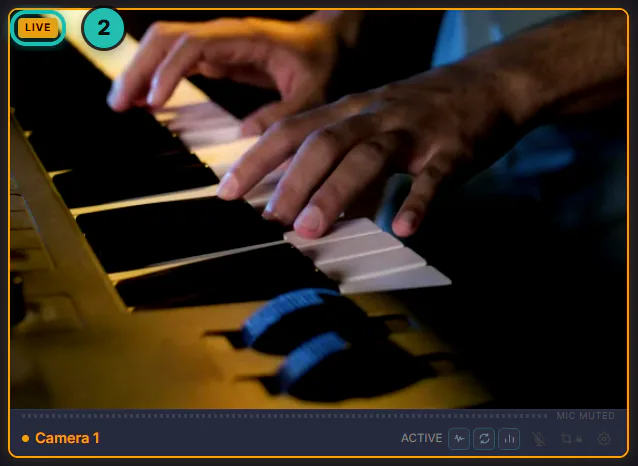
Put the phone on a stand at the back and point it at the front: the pulpit, the couple, the musicians. The people in the pews stay out of the picture, and nobody has to hold anything.
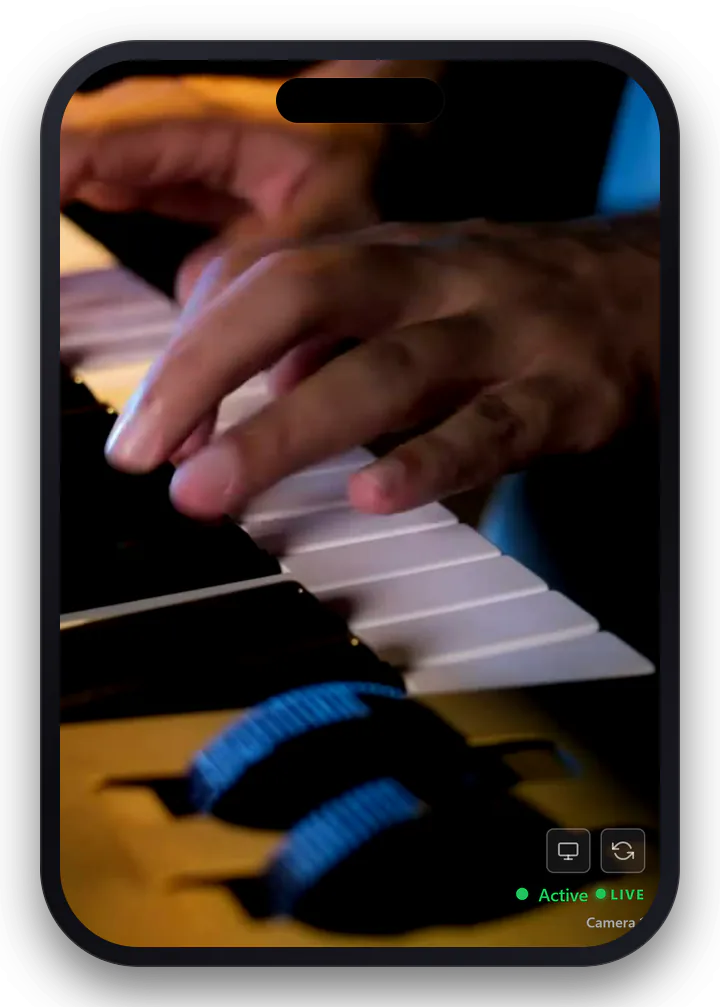
If the service is long, plug the phone in. A funeral and a wedding both run longer than you think.
Step 3: Put the hymn on the screen
Go to BROADCAST. In the LIBRARY, press Plan next to the hymn to add it to TODAY'S PLAN, click it there, then click the first line under ACTIVE ITEM. The line shows on the LIVE PREVIEW over the camera.
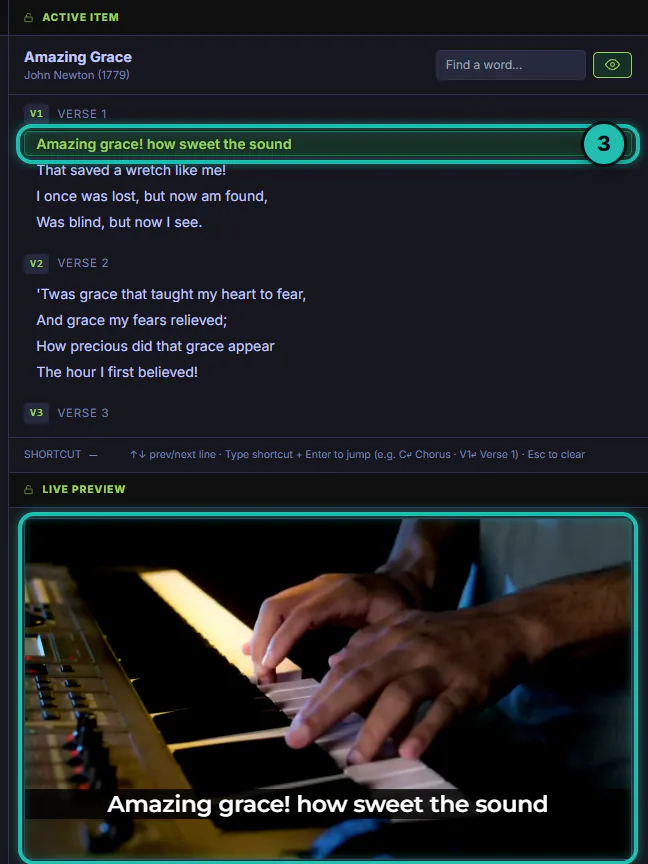
The words go out on the live stream and into the recording too, so the family can sing along at home. The lyrics tutorial covers songs and Bible verses in full.
Step 4: Add the name for the room's screen (optional)
A lower third with "In loving memory" and the name is a banner image. Upload it in Settings › Accounts under Lower Third, then pick Bot Left, Bot Center or Bot Right under Lower Third Position. The logo and banner tutorial walks through it. While the name is up, hide the words with the eye button at the top of ACTIVE ITEM, so the two don't sit on top of each other.
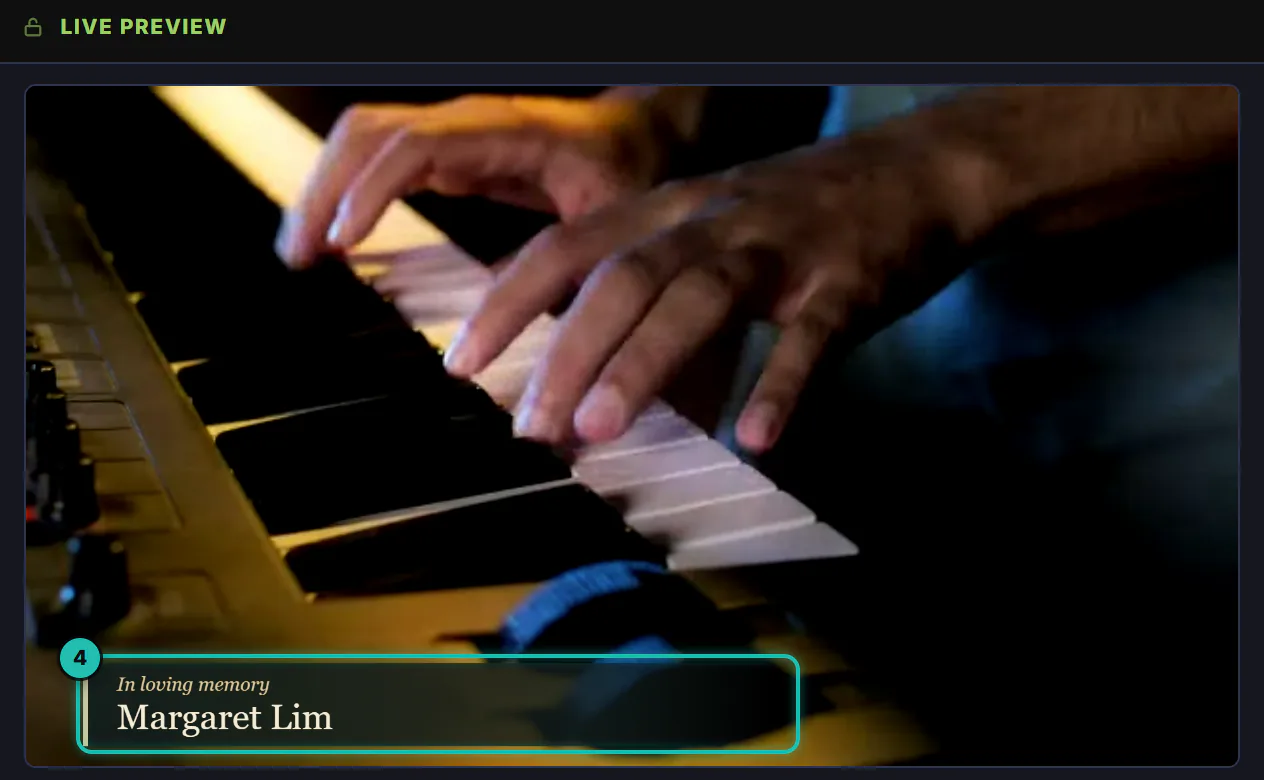
On the Free plan the banner shows on the screens in the room, not on the live stream or in the recording. The family at home sees the camera, the words and your logo, which is why the name goes in the stream's title as well.
Step 5: Start the service and press REC
A few minutes before it begins, press START SERVICE at the top right, then REC under it. REC turns into a red counter. Press it early, so the welcome is in the file too.
Then go live the way you do on Sunday, with Go Live on YouTube in Settings › Live Stream. Copy the watch link from YouTube and send it to the family.
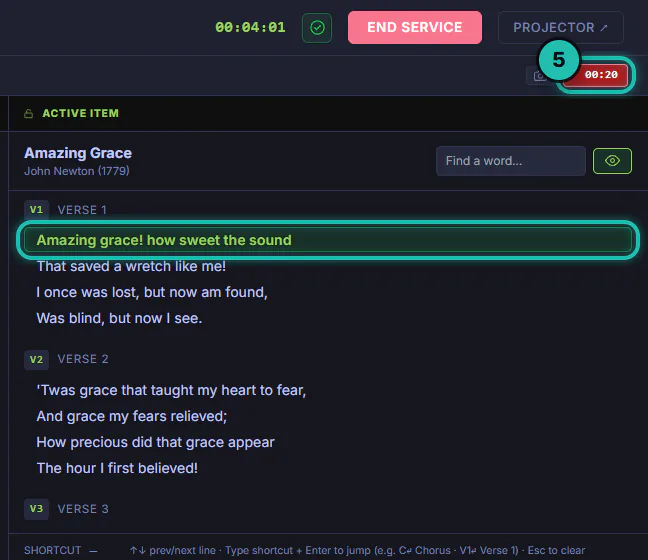
The recording is made on the laptop, so the family's copy doesn't depend on the stream.
Step 6: When it ends, end the stream and the service
Press End Stream, then END SERVICE at the top right. Ending the service stops REC too, so the recording can't run on after everyone has gone home.

Then put Privacy back to what Sunday uses. Stream Presets are the defaults for every time you go live, so next week's service would go out Unlisted too.
Step 7: Give the family their copy
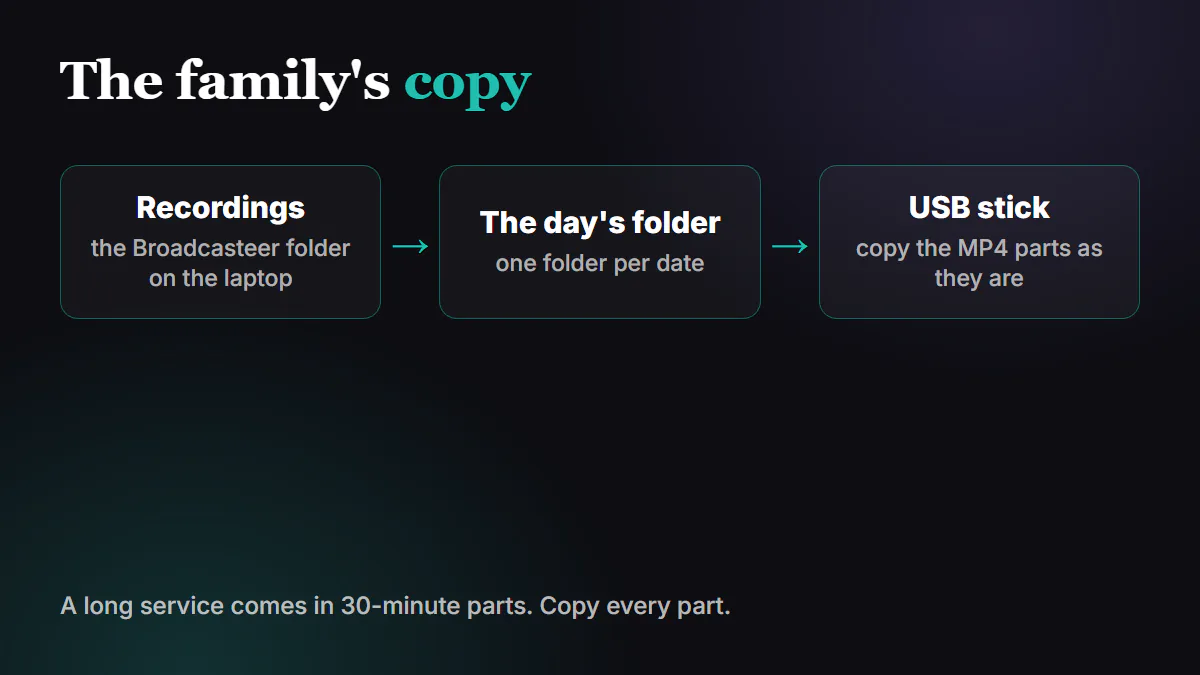
The recording is an MP4 in the Broadcasteer Recordings folder on the laptop, inside a folder for the day. A long service comes in 30-minute parts, numbered in order. Copy every part onto a USB stick as it is, or share the files the way your church usually does.
If it doesn't work
- There's no Privacy row. The platform in Stream Presets isn't YouTube. Privacy is a YouTube choice, so pick YouTube for a stream only the family should see.
- The stream went out Public. It went live with a stream key, not the connected channel. Set Unlisted in YouTube Studio, or connect the channel in Settings › Live Stream.
- REC is greyed out. The service hasn't started. Press START SERVICE.
- The name isn't on the live stream. On the Free plan the banner shows on the screens in the room only. Put the name in the stream's Title.
- Next Sunday's stream is Unlisted too. The presets are used every time you go live. Set Privacy back after the service.