
Time: about 3 minutes, plus the cable · Plan: Free, PRO and MAX alike (a wired camera doesn't use up a phone camera) · You'll need: a USB webcam, or a camcorder or HDMI camera with an HDMI cable and a USB capture card, and a free USB port on the computer that runs the Studio
Plug a USB webcam into the computer that runs the Studio, or run the camcorder's HDMI out into a USB capture card and plug that in. In the CAMERA tab, press USB on an empty tile and pick the camera from the list. Its picture fills the tile, and one tap puts it on air. It works on every plan, and on Free it sits beside your one phone camera instead of replacing it.
Step 1: Plug in the camera, then press USB on an empty tile
Plug the webcam into a USB port on the computer that runs the Studio. For a camcorder, or any camera with an HDMI out, run an HDMI cable from the camera into a USB capture card and plug the card into the computer. Turn the camera on.
In the CAMERA tab, find an empty tile. It says Choose source with three cards: Phone, USB and NDI. Press USB.
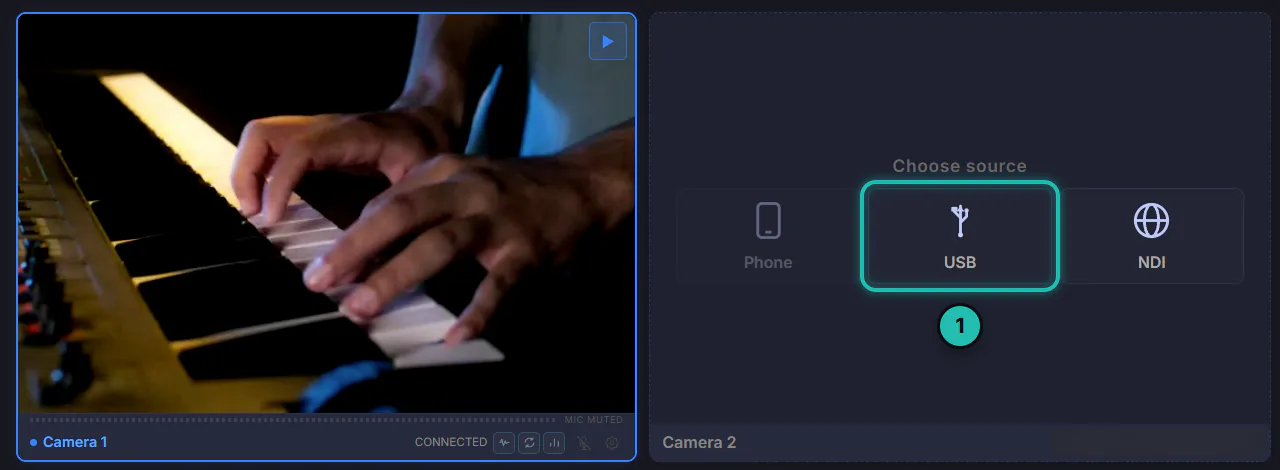
On the Free plan, once one tile is set up for a phone, Phone goes dim on the others because the plan's one phone camera is taken. USB stays lit: a wired camera doesn't count against it.
Step 2: Pick the camera from the list
The tile turns into a list headed USB / capture cards, one row for every camera the computer can see. Each row carries the name the camera gives itself. A webcam usually shows its brand; a capture card often just says USB Video. Press the row.
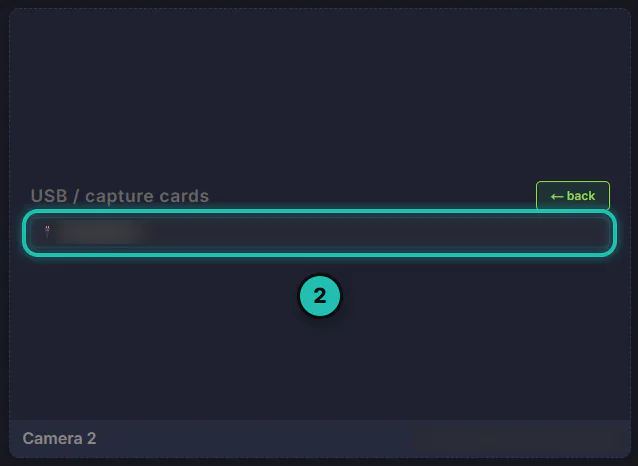
Software cameras, the kind other streaming programs install, sit at the bottom of the list, dimmed and marked virtual. Leave them alone unless you put them there on purpose. ← back returns to the three cards.
If the list says No capture devices detected. Plug one in., the computer can't see the camera yet. Plug it in and the list fills in by itself.
Step 3: Check the picture in the tile
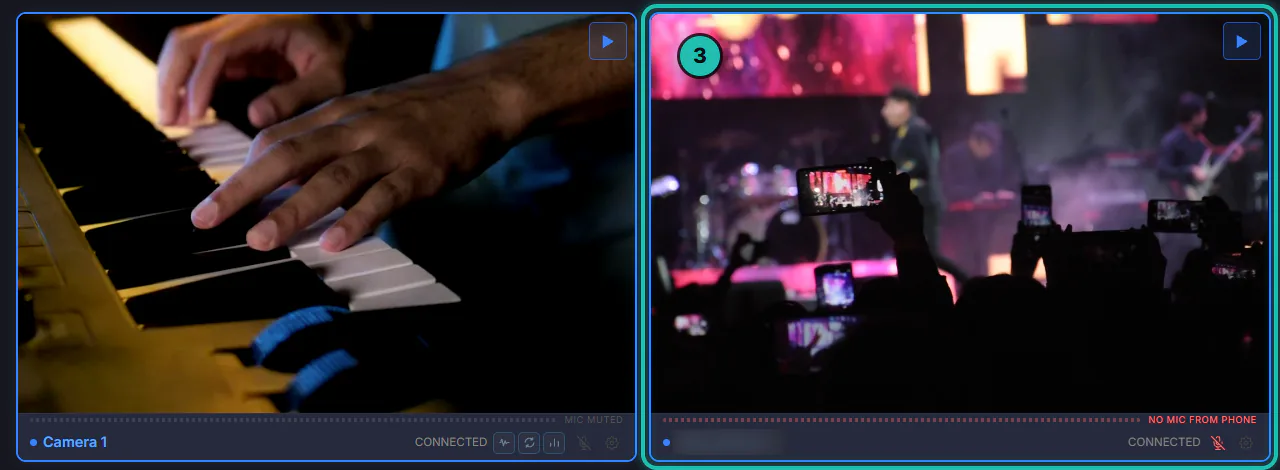
The camera's picture fills the tile, with a blue border and CONNECTED at the bottom. Blue means ready, not on air. The tile now carries the camera's own name from the list (blurred in these pictures).
The card runs at your plan's full size from the first second: 720p on Free, 1080p on PRO, 1080p or more on MAX. So the picture is already sharp when you take it, with no soft first few seconds on air.
If the card carries the camera's sound, it comes in with the picture, muted until you press the microphone button on the tile. A camera that sends no sound shows a red NO MIC FROM PHONE strip under the picture. On a wired camera that only means no sound comes with it; the service sound still comes in through the AUDIO bar as usual.
Step 4: Tap the tile to put it on air
Tap the picture once. The border turns orange and a LIVE badge appears: the wired camera is on air, in the live stream and the recording like any other camera. A phone takes two taps, one to warn the volunteer and one to take it. Nobody holds a wired camera, so one tap takes it straight away.
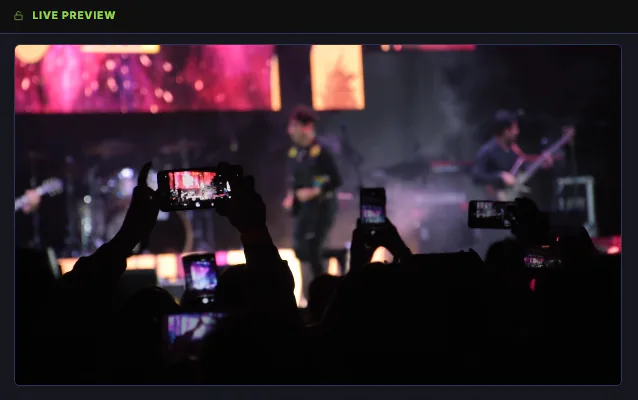
On the BROADCAST tab, the LIVE PREVIEW shows it too. To switch away, tap another camera.
Step 5: Let go of it with Release Source
When the service is over, or you want the tile for something else, press the gear at the bottom right of the tile, then Release Source. The camera is freed and the tile goes back to Choose source. Close shuts the panel and changes nothing.
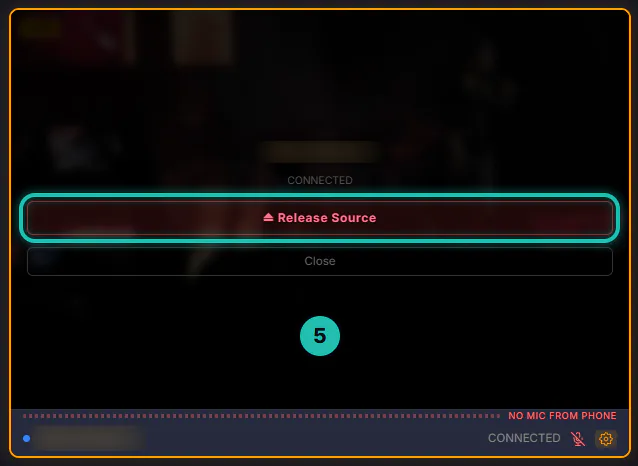
If the camera is on air, tap another camera first, so the live stream isn't left without one. The Studio doesn't keep the camera from one week to the next: after it restarts the tile is empty again, so pick the camera from the list each Sunday.
If it doesn't work
- The list says No capture devices detected. The computer can't see the camera. Try another USB port and wait a few seconds; the list fills in by itself.
- You pick the camera and the tile goes straight back to Choose source. Another program has the camera open: a video call, the Windows Camera app or other streaming software. Close it and pick the camera again.
- The tile stays black. The card isn't getting a picture. Check the camcorder is on and not in standby, the HDMI cable is pushed in at both ends, and HDMI output is switched on in the camcorder's menu.
- Two rows both say USB Video. Cheap capture cards often report the same name. Pick one and look at the picture; if it's the wrong camera, press the gear, Release Source, and pick the other row.
- Lips run late when you cut to the camcorder. In Settings › Video › Camera Sync, choose Broadcast-aligned. It holds the faster cameras back to the slowest, so one audio delay fits every camera. Setting the camcorder's HDMI out to 1080p rather than 1080i helps too.
Next
- How to turn your volunteers' phones into cameras, to put phones in the other tiles
- How to make the cameras switch by themselves during worship, which switches between a wired camera and the phones too
- What you need to run Broadcasteer (and what you don't)
- Why your lip sync drifts (and why it is almost never the camera)