
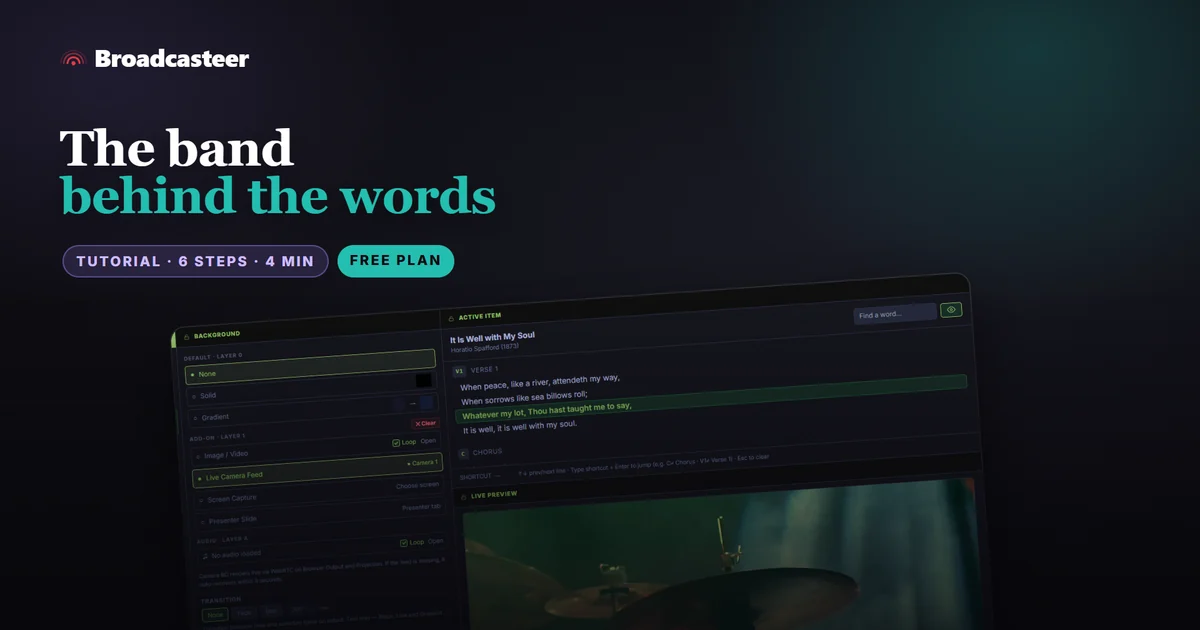
Time: about 4 minutes · Plan: Free, every plan (one phone camera on Free) · You'll need: a song in Today's Plan, a video file for the moving background, and a phone camera for the live one
In the Broadcast tab's Background dock, pick Image / Video under ADD-ON · LAYER 1, choose a video and tick Loop: the lyrics sit on top of it. For the band behind the words, take a camera live and the background switches to Live Camera Feed by itself. A song can also carry its own background, so it comes up whenever that song does.
Step 1: Open the Background dock
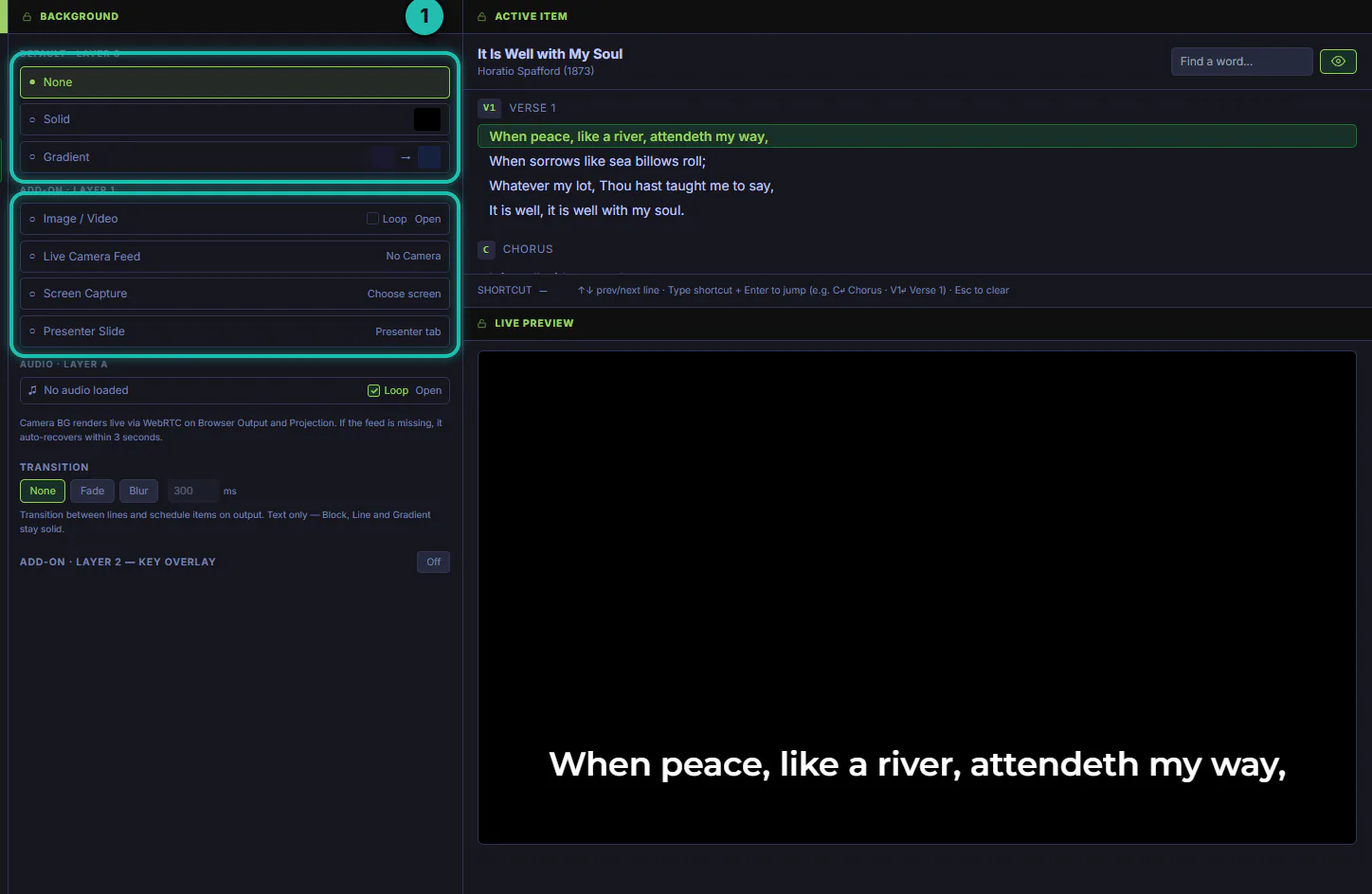
On the Broadcast tab, right-click any dock's title bar and choose Background under DOCKS. DEFAULT · LAYER 0 is the floor: None, Solid or Gradient. ADD-ON · LAYER 1 sits on top of it: Image / Video, Live Camera Feed, Screen Capture or Presenter Slide, one at a time.
Step 2: Choose a moving background
Press Open on the Image / Video row and choose your video. It shows ✓ loaded when it's ready. Tick Loop so it repeats, then pick Fit, Fill or Stretch. Fill covers the whole screen without bars.
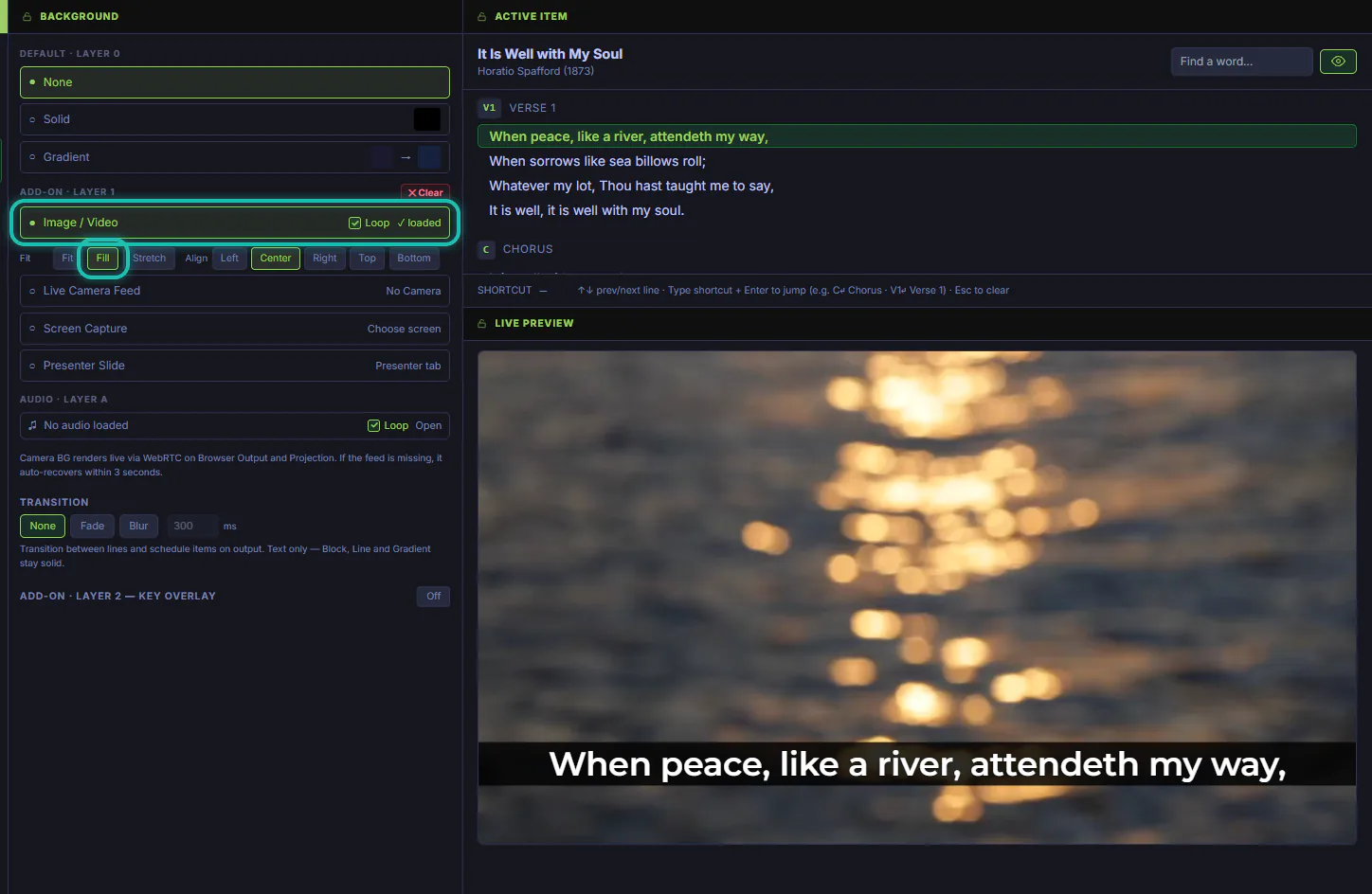
If you choose a WMV, AVI or MKV file, it's converted to MP4 first. Wait until it shows in Live Preview.
Step 3: Put the words up
Click the lines of the song as usual. The words sit over the moving background, and only the words change. To keep them readable over moving light, give them an outline or a stripe in the Presentation / Theme dock.
Step 4: Put a live camera behind the words instead
On the Camera tab, take a camera live: tap it once to cue it, and again to take it. Back on the Broadcast tab, the background has switched to Live Camera Feed on its own, with the camera's name beside it, and the band is behind the words.
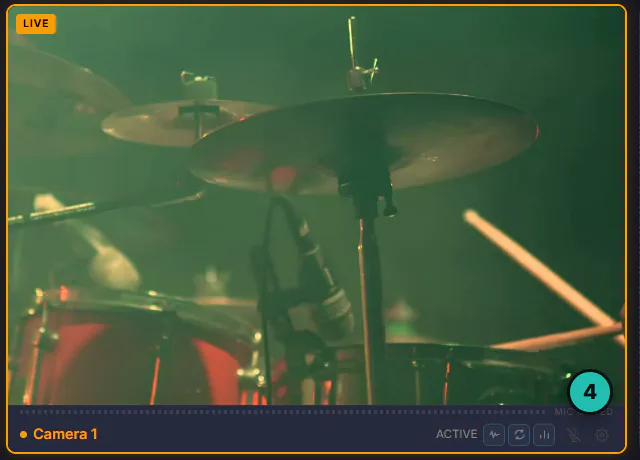
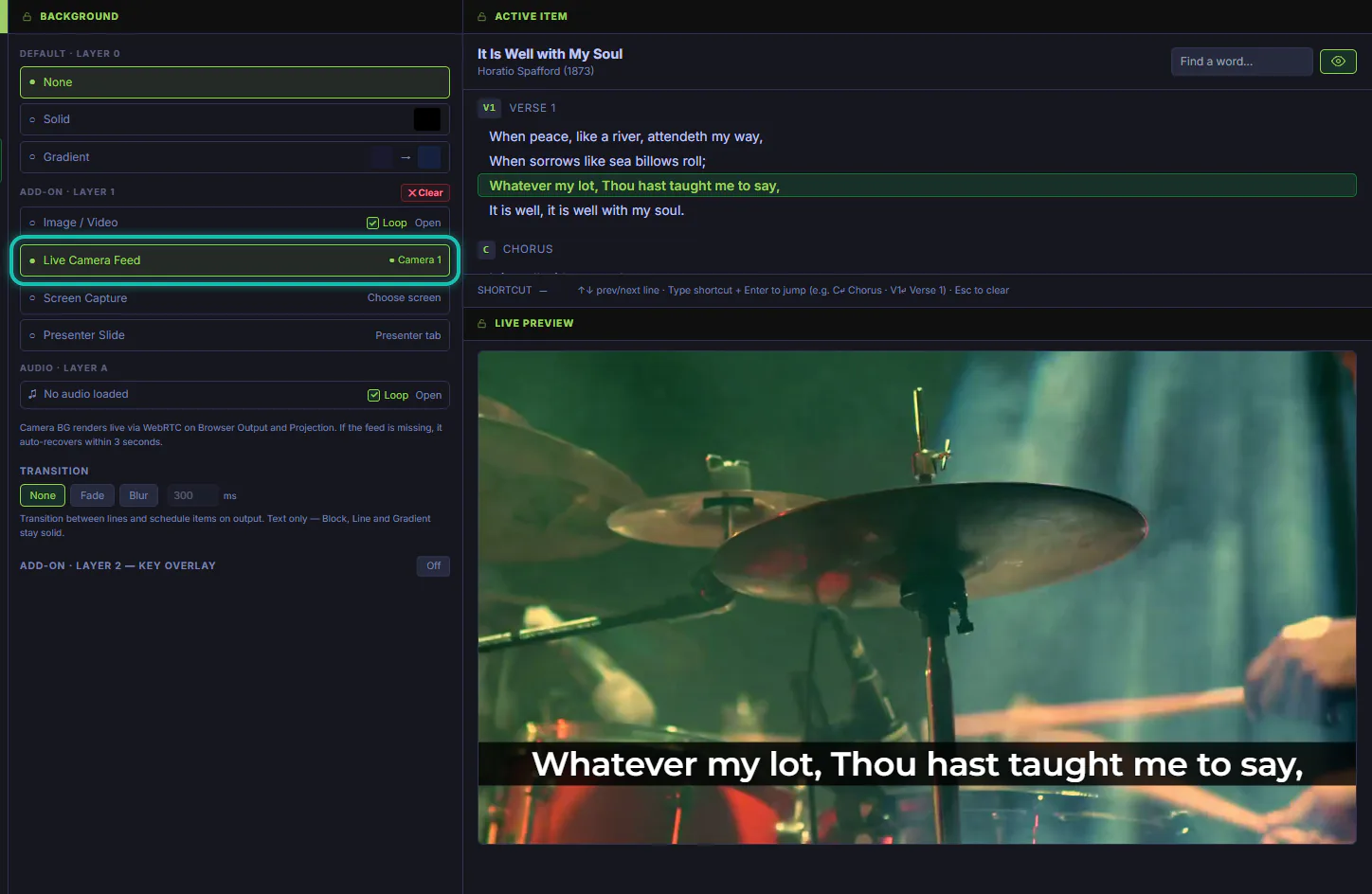
If the camera picture drops out for a moment, it comes back by itself within 3 seconds.
Step 5: Give one song its own background
In the LIBRARY, press Edit on the song. Under BACKGROUND · THIS SONG, set Layer 0 (Inherit keeps the Studio's floor) and press Image / Video on Layer 1 to choose a picture or video for this song only. Press Save Song. It comes up whenever the song does.
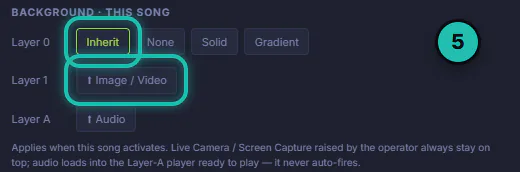
A live camera you raised stays on top of a song's own background, so the band never disappears mid-song.
Step 6: Go back to the plain background
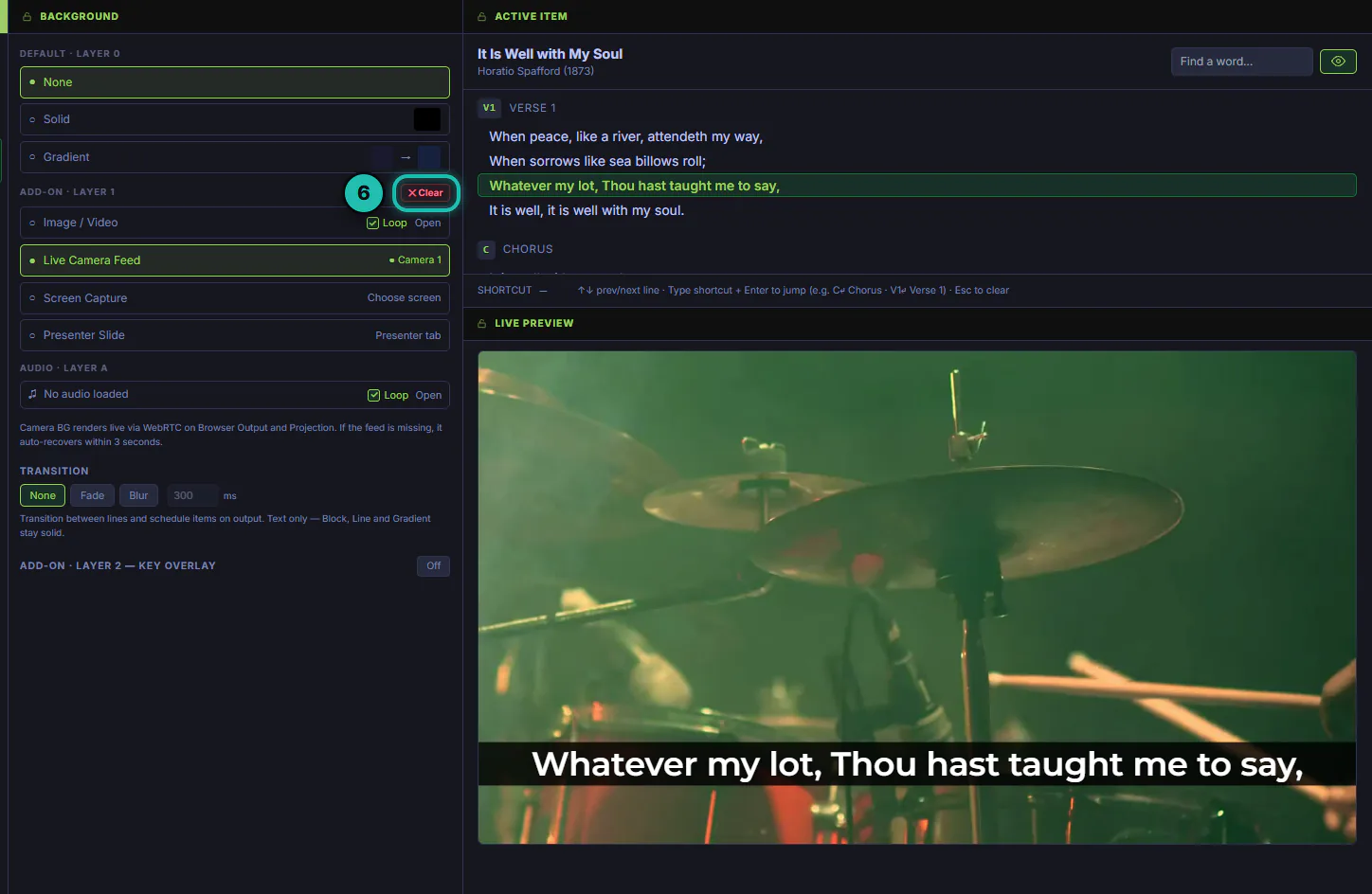
Press ✕ Clear at the right of ADD-ON · LAYER 1. The video or camera goes, and your DEFAULT · LAYER 0 shows again. F1 does the same if you've set it up.
If it doesn't work
- Live Camera Feed says No Camera. No camera is live yet. Take one in the Camera tab.
- The song's own background doesn't come up. A live camera or screen capture you raised stays on top. Press ✕ Clear first.
- The video plays once and stops. Loop isn't ticked.
- The camera background drops out for a moment. It comes back by itself within 3 seconds. If it doesn't, check the phone.
- The words are hard to read over the video. Give them an outline or a stripe in the Presentation / Theme dock, or pick a calmer video.