

Time: about 10 minutes · Plan: Free (1 camera), PRO (3), MAX (5) · You'll need: the laptop running Broadcasteer and online, the volunteer's phone on the same Wi-Fi, an authenticator app on any iPhone
Android phones scan the Local code and trust your church's certificate once. iPhones scan the Remote code and enrol once with an authenticator app, so they never need a certificate. If an iPhone asks to download a configuration profile, it scanned the Local code... it can work that way, but Remote is far fewer taps.
Step 1: Choose Phone on an empty tile
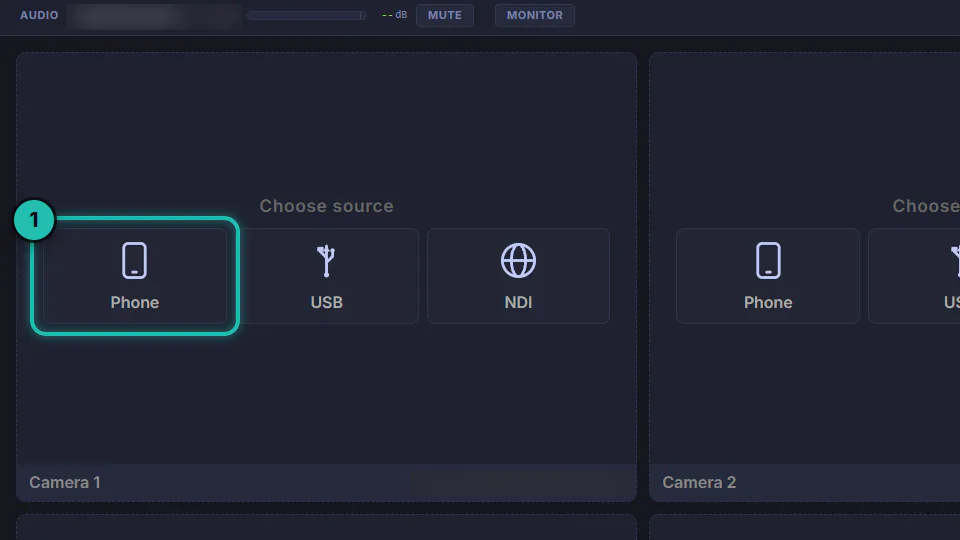
Open the Camera tab and find an empty tile. Under Choose source, press Phone. The tile turns into the code your volunteer scans.
Step 2: Android, scan the code as it opens
The code opens on the Local route, and that's the one for Android. The volunteer points the phone's camera at it and taps the link that pops up. Local works for any phone on the same Wi-Fi as the laptop.

Step 3: Android, install the certificate once
The first scan opens One-time Setup. Tap Download Certificate, and when Chrome warns that the file can't be downloaded securely, tap Keep. Open broadcasteer-ca.crt from Downloads, tap Install, then come back to the page and tap the join button under step 2.

That's once per phone for this laptop. Next Sunday the same phone skips this page and goes straight to the camera. The Studio shows a New device detected card while this happens; close it once the phone is in.
If the phone shows no install prompt, the page lists where to find the certificate in Android's Settings.
Step 4: iPhone, skip the configuration profile
Scan the same Local code with an iPhone and the page asks for something else. Safari downloads a configuration profile, which then has to be installed in Settings and switched on under Certificate Trust Settings. It works. It's also three trips into Settings for a volunteer who came to hold a phone, so for an iPhone, go back to the Studio and use the Remote code instead.
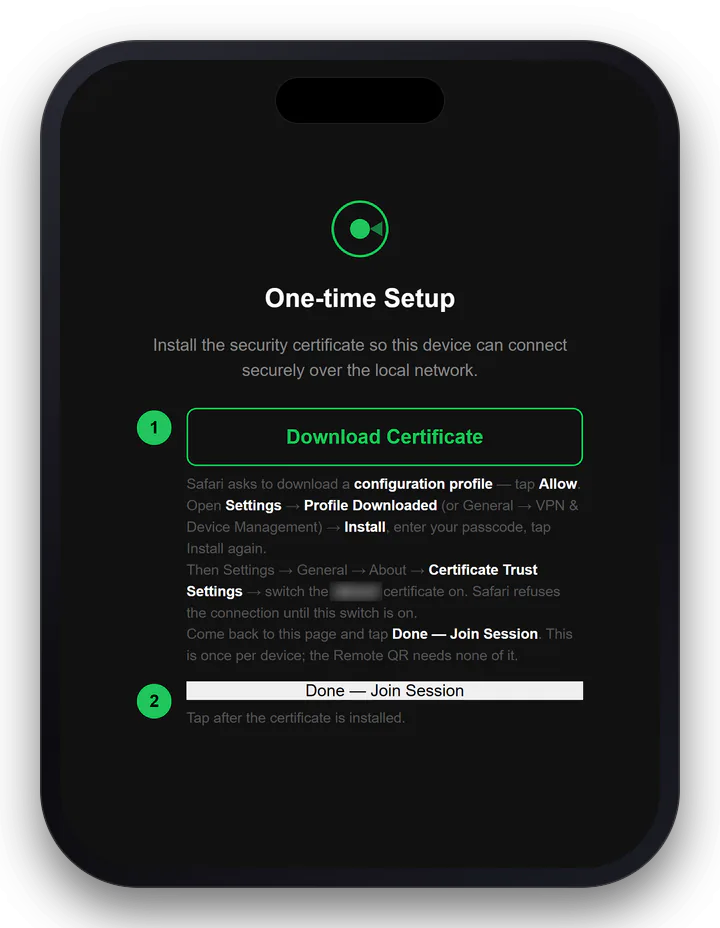
An iPhone that already trusts this laptop's certificate skips this page and goes straight in. That's why some iPhones seem to join on Local without asking.
Step 5: iPhone, switch on Remote and press it
Open Settings › System & Network and set Remote Sources to Remote. It stays on, so this is a one-time job. If all your volunteers carry Android phones, you can leave it on Local Only.

Back on the Camera tab, press Remote under the tile's code. The code changes, and the iPhone scans that one. Copy link gives you the same invite to send by message, if that's easier than holding the laptop up. An invite lasts ten minutes and works once, so press Remote again for the next phone.
Step 6: iPhone, enrol once
The iPhone opens Enrol this device. Tap Open authenticator app to add an entry to Google Authenticator, Microsoft Authenticator, Authy, 1Password or iPhone Passwords. Under Who is this? the volunteer types their name, so you know whose phone it is. Then they type the code from the app under Enter the 6-digit code and tap Enrol this device.
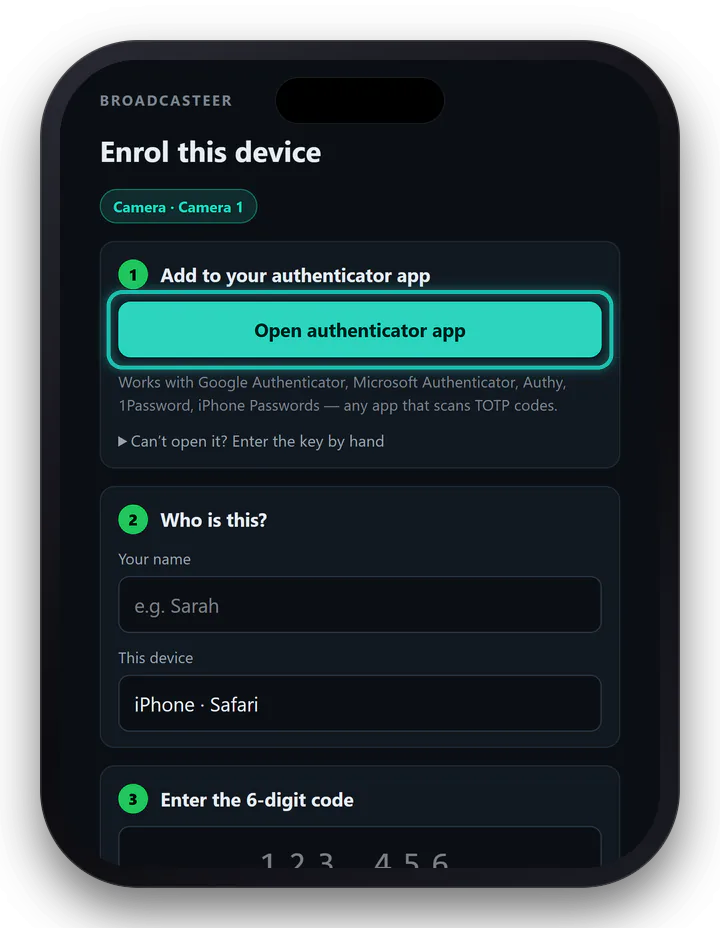
The camera opens straight after. That iPhone isn't asked to enrol again for about three months.
Step 7: Check the phone says Standby
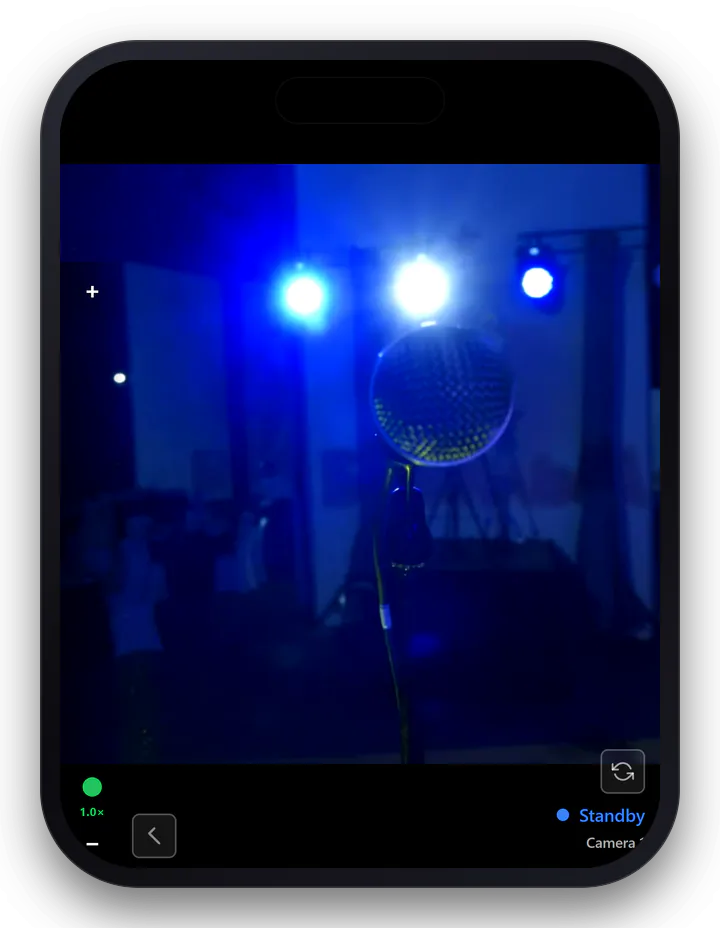
Whichever code it took, the phone ends up on its own camera picture with Standby and the camera's name in the corner, and the tile in the Studio fills with the same picture. From here the two phones work exactly the same: tap the tile once to warn the volunteer, again to put them on air.
If it doesn't work
- An iPhone asks to download a configuration profile. It scanned the Local code. Press Remote under the code and scan again.
- There's no Remote button under the code. The laptop isn't online, or Broadcasteer has only just started. Check the internet connection and give it a minute.
- The iPhone enrolled but never shows up on the tile. Remote Sources is still on Local Only. Set it to Remote (step 5), then scan the Remote code again.
- The iPhone says the invite has expired. Invites last ten minutes and work once. Press Remote again and scan the new code.
- Android says Certificate not trusted yet. The certificate didn't install. Tap Download Certificate again, install it, then tap the join button.