
Time: about 8 minutes · Plan: Free, every plan · You'll need: the song in both languages, ready to type or paste line by line
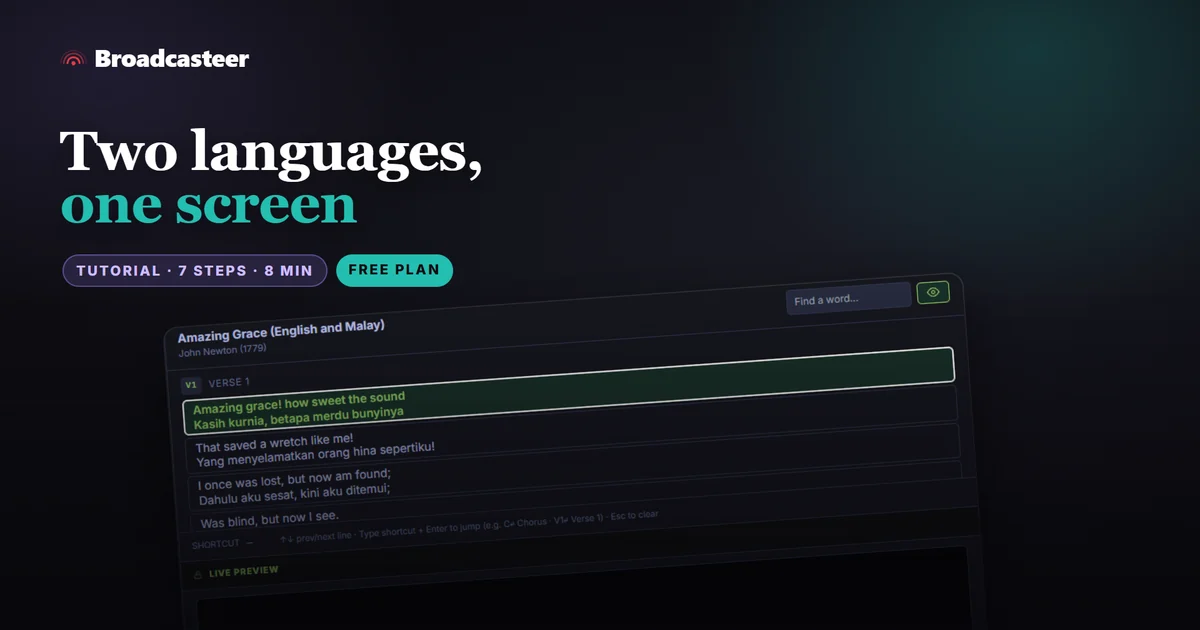
Make the song in the Song Editor with Bi-lingual ticked, and type each line followed by its translation. Each pair goes up on the screen together. Then give the translation its own size and colour in the theme's Bi-Ling rows, so each reader finds their line at a glance.
Step 1: Start a new song
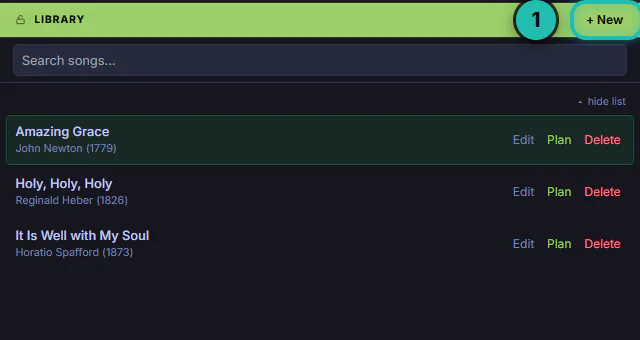
In the LIBRARY dock, press + New. Type the title and the writer. If the song is already in your library in one language, give the bilingual one its own title, like "Amazing Grace (English and Malay)".
Step 2: Tick Bi-lingual and add a verse
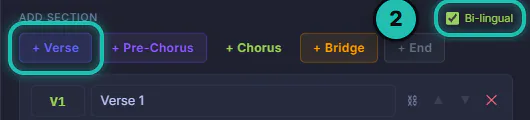
Bi-lingual sits at the top of the middle column, beside ADD SECTION. Tick it, then press + Verse. The verse appears as V1, Verse 1.
Step 3: Type each line, then its translation
Line 1 in English, line 2 its translation, line 3 in English, line 4 its translation, and so on. The green link icons in the gutter show which lines are joined; a joined pair goes up as one. If you typed the verse before ticking Bi-lingual, press the pair button beside the verse name and it joins lines 1 and 2, 3 and 4.
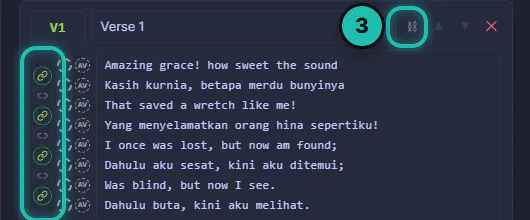
If a line has no translation, every pair after it shifts by one. Click that line's link icon to unpair it.
Step 4: Give the translation its own look
In the left column, set THEME to Bilingual Duet. The Bi-Ling rows style the translation only: its typeface, its size (a percentage of the main line), its colour, then B, I and U and its own L C R. Here it's 80%, a soft yellow and italic. The editor's preview shows the result; the screen in the room doesn't change until you save.


Step 5: Save the look as a theme
Press 📄 beside the theme list, type a name and press Save. The song now uses that theme, and you can pick it for your other bilingual songs too.

Step 6: Save the song
Press Save Song at the bottom of the editor.

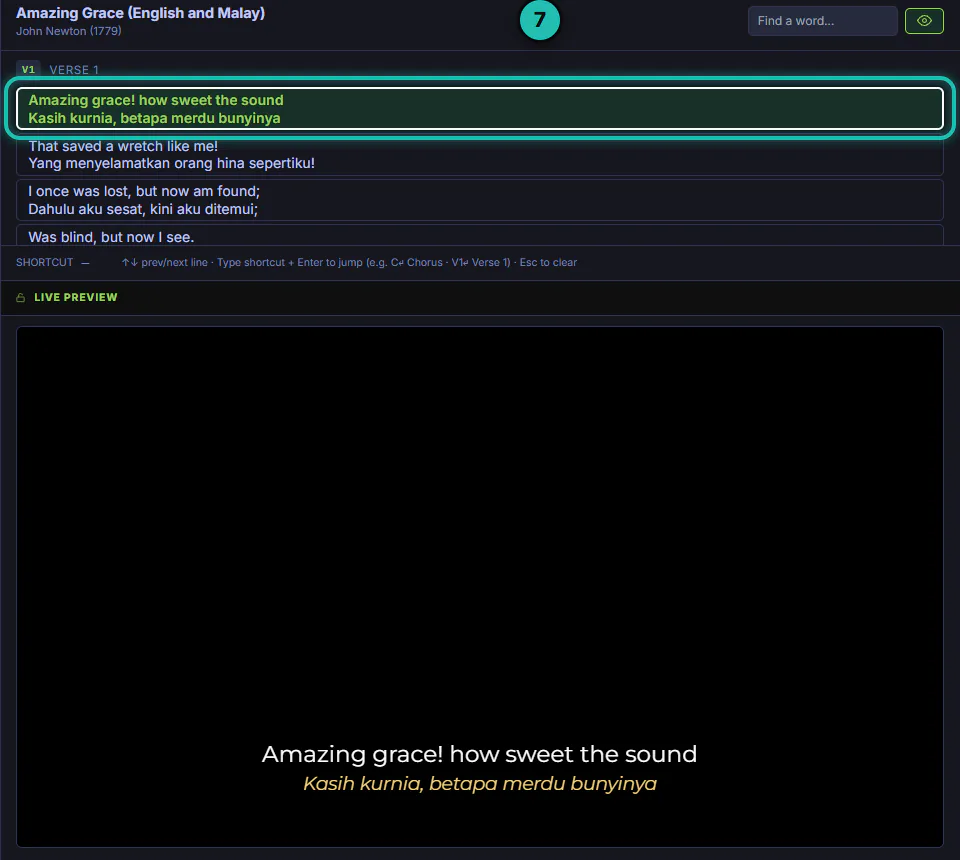
Step 7: Put it on the screen
In LIBRARY, press Plan on the song to add it to TODAY'S PLAN, then click it there. ACTIVE ITEM shows each pair as one block. Click a block, or use the arrow keys, and both lines go up together.
The same Bi-Ling rows also style the reference line under Bible verses.
If it doesn't work
- The translation looks exactly like the English. The theme's Bi-Ling rows are still neutral. Set a size and a colour there, then save the theme.
- I ticked Bi-lingual on an old song and two English lines got joined. Ticking pairs lines 1 and 2, 3 and 4 in any verse that has no pairs yet. Add the translation lines first, then press the pair button, or join and unjoin lines by hand in the gutter.
- The pairs are off by one after a certain line. A line without a translation, or an extra line, shifts the counting. Click its link icon in the gutter.
- The song disappeared from ACTIVE ITEM after I saved it. Saving a song that's on the screen takes it off Active Item. Click it in Today's Plan again.
- Changing the look in the editor didn't change the screen. The editor's theme is a draft until you save it.