
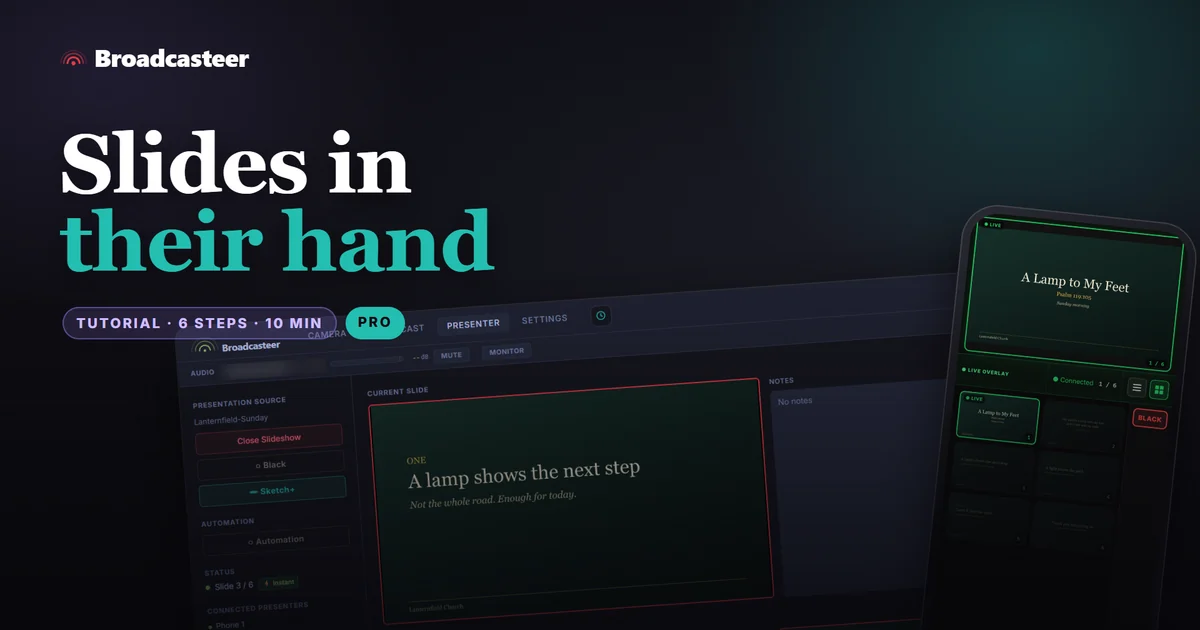
Time: about 10 minutes · Plan: PRO or MAX for the phone remote (the Presenter tab itself is on every plan) · You'll need: the sermon slides as a PowerPoint file (with Microsoft PowerPoint on the laptop) or a folder of images, the preacher's phone on the church Wi-Fi
Open the slides in the Studio's Presenter tab, show the Presenter QR, and the preacher scans it with their phone's camera. Their phone shows the live slide and every slide after it, with buttons to go forward, go back or black the screen. The booth keeps full control the whole time.
Step 1: Open the slides
In the Presenter tab, press PowerPoint… for a .pptx file, or Image Folder… for a folder of pictures, one per slide. Pick the file or folder and the slides load.
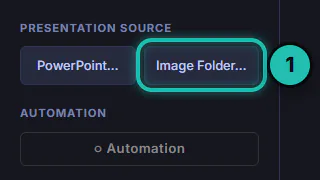
Do this in the Broadcasteer Studio window. The file picker only opens there, not in a browser tab.
Step 2: Check the deck from the booth
The tab shows the Current Slide, the Notes and every slide underneath. The arrow keys, or a USB clicker, move through them, and you can drag slides to reorder them.
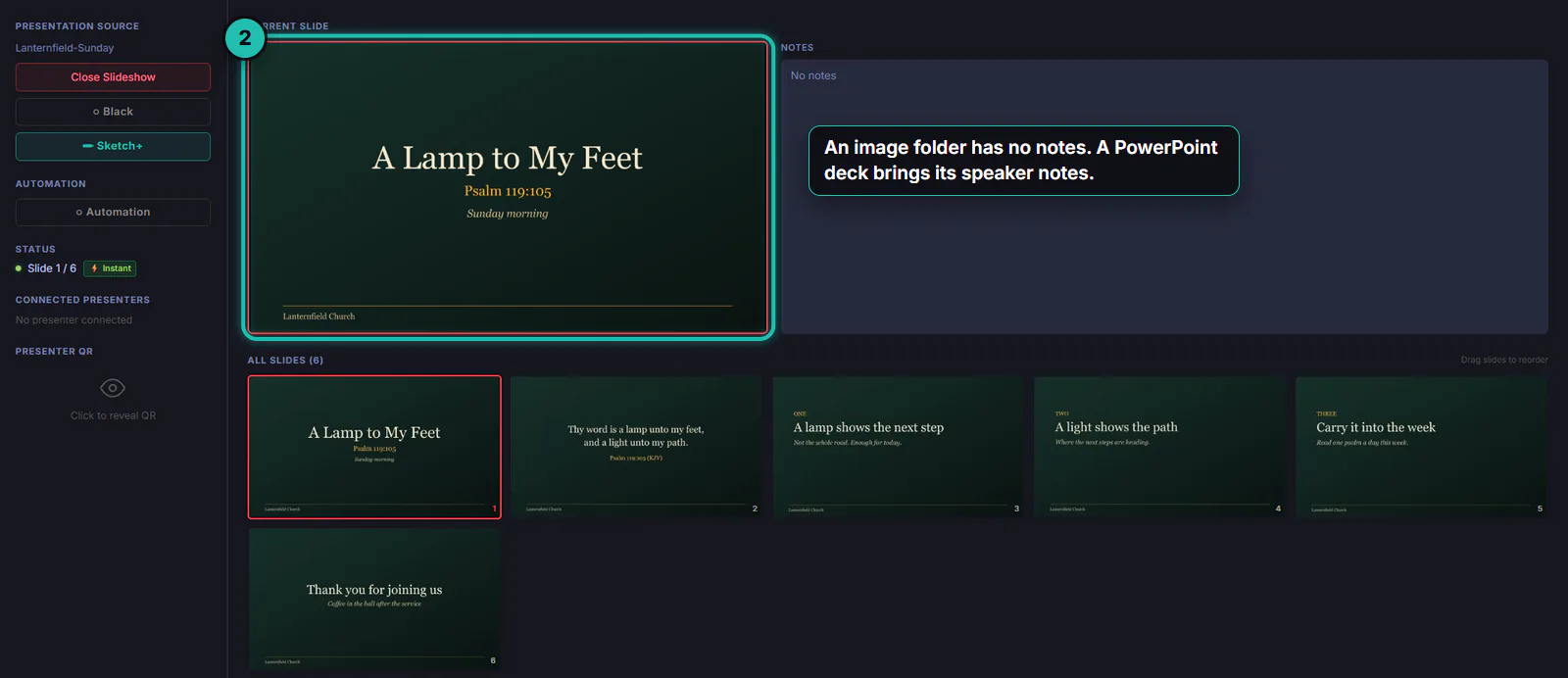
In my test the first slide was on the screen as soon as the deck opened. If yours isn't, choose Presenter Slide in the Broadcast tab's Background dock.
Step 3: Show the code
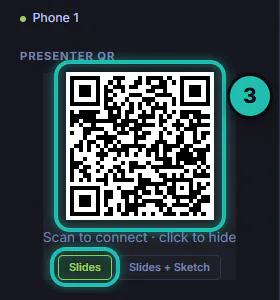
Under Presenter QR, press Click to reveal QR. Leave Slides selected; Slides + Sketch also lets the preacher draw on the slide.
Step 4: The preacher scans it
The preacher points their phone's camera at the code and opens the link. The remote opens in the phone's browser, and Phone 1 appears under Connected Presenters in the Studio.
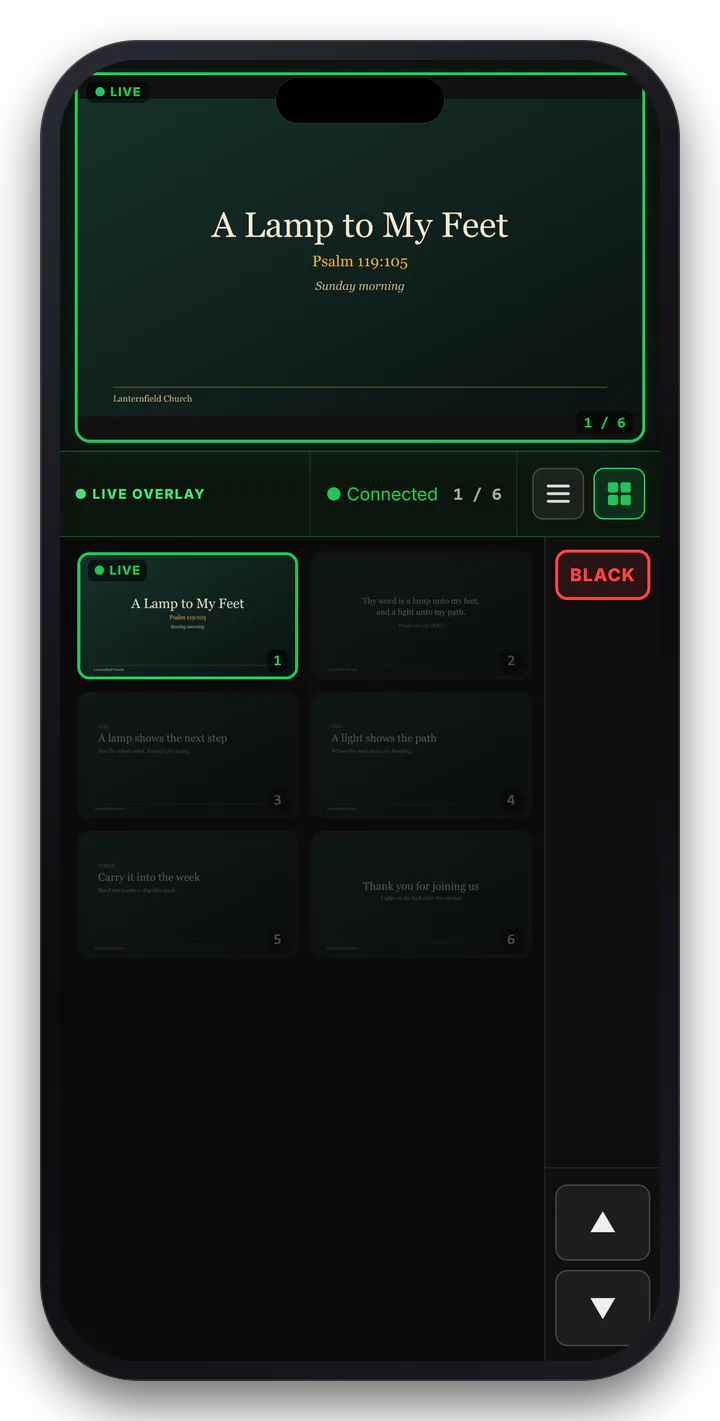
Step 5: The preacher moves the slides
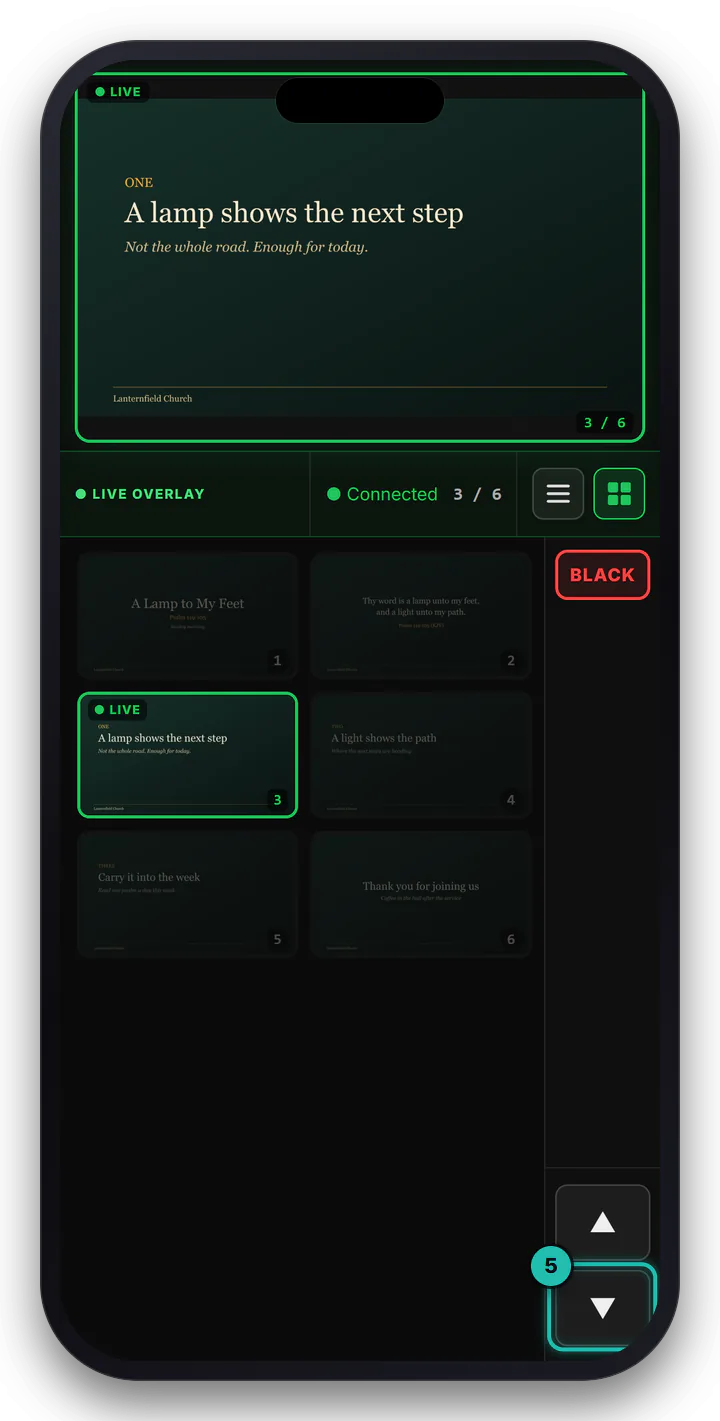
▼ goes to the next slide, ▲ goes back, and tapping any slide in the grid jumps to it. The Studio follows each tap, and so does the screen.
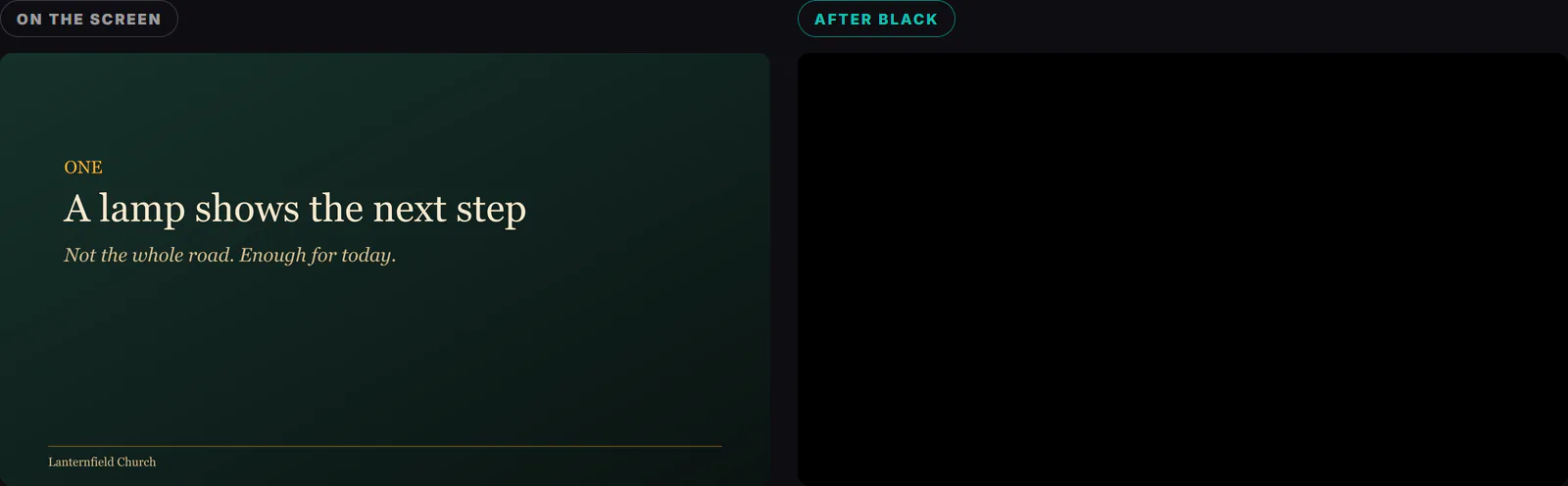
BLACK takes the slide off the screen, and the phone says the screen is black. Tap BLACK again to bring it back, or tap any slide in the grid to show that one instead. ▼ and ▲ keep moving through the slides while it stays black, so the preacher can line up the next slide before it shows.
Step 6: The booth stays in charge
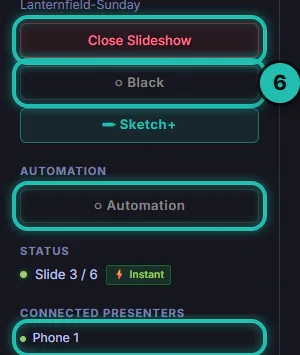
The Studio's own controls keep working while the preacher drives. ○ Black blacks the slides from the desk, Close Slideshow ends the deck, and ○ Automation cycles chosen slides on a timer, for a welcome loop before the service.
If it doesn't work
- A message says no file was selected. The deck was opened from a browser tab. Open it from the Broadcasteer Studio window.
- The deck takes a long time to open, then shows a warning. Check the file opens in PowerPoint on this laptop, or export the slides as images and use Image Folder…
- The code area says No LAN detected. The laptop isn't on a network. Join the church Wi-Fi.
- The phone can't connect. It's on mobile data or a different Wi-Fi. Put it on the same Wi-Fi as the laptop. When the Studio can be reached over the internet, Local and Remote options appear under the code; Remote works away from the Wi-Fi and has Copy link to send it by message.
- The slides aren't on the screen. Choose Presenter Slide in the Broadcast tab's Background dock.