
Time: about 5 minutes · Plan: Free (one phone and one USB camera), PRO (up to 3 phones), MAX (5) · You'll need: two live cameras and a song in Today's Plan
Turn on Auto-take on cue and then Automation in Settings › Video, choose the order and when to switch (Every few seconds, Each line or Each section), and put a song up with a live camera behind it. Broadcasteer cues the next camera and switches the moment it's ready, holding every shot at least 7 seconds. Tap a camera yourself and Automation steps aside.
Step 1: Get two cameras live
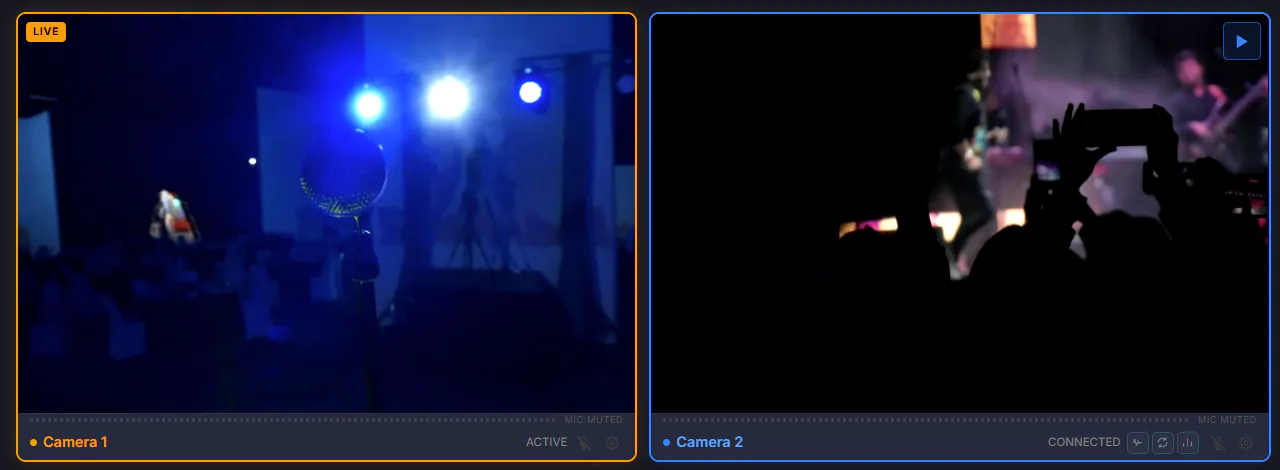
In the Camera tab you need at least two cameras sending a picture. On PRO and MAX that can be two phones. On the Free plan, use one phone plus USB for a webcam or an HDMI capture card: USB sources don't count against the plan's phone limit.
Step 2: Turn on Auto-take on cue
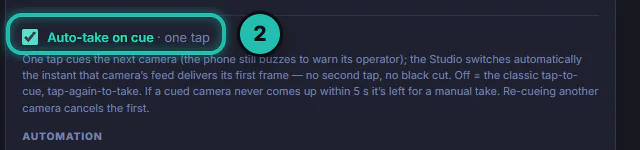
Open Settings › Video. At the bottom of the right column, tick Auto-take on cue · one tap. With it on, a cued camera goes live by itself the moment its picture arrives, so a switch never shows black.
Step 3: Turn on Automation
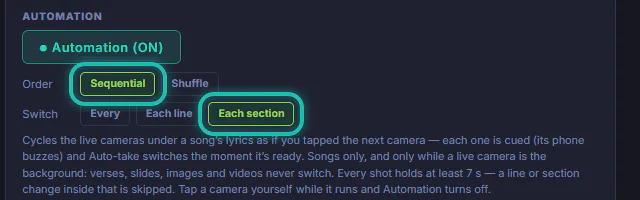
Just below, press ○ Automation. It turns green and reads ● Automation (ON). It stays greyed out until Auto-take on cue is ticked.

Step 4: Choose the order and when to switch
Order: Sequential goes through the cameras in the Camera tab's order; Shuffle uses every camera once per round, in a random order, never the live one. Switch: Every few seconds, Each line of the lyrics, or Each section, so verse to chorus. Each section is the calmest choice for most songs.
Step 5: Put a song up over a live camera
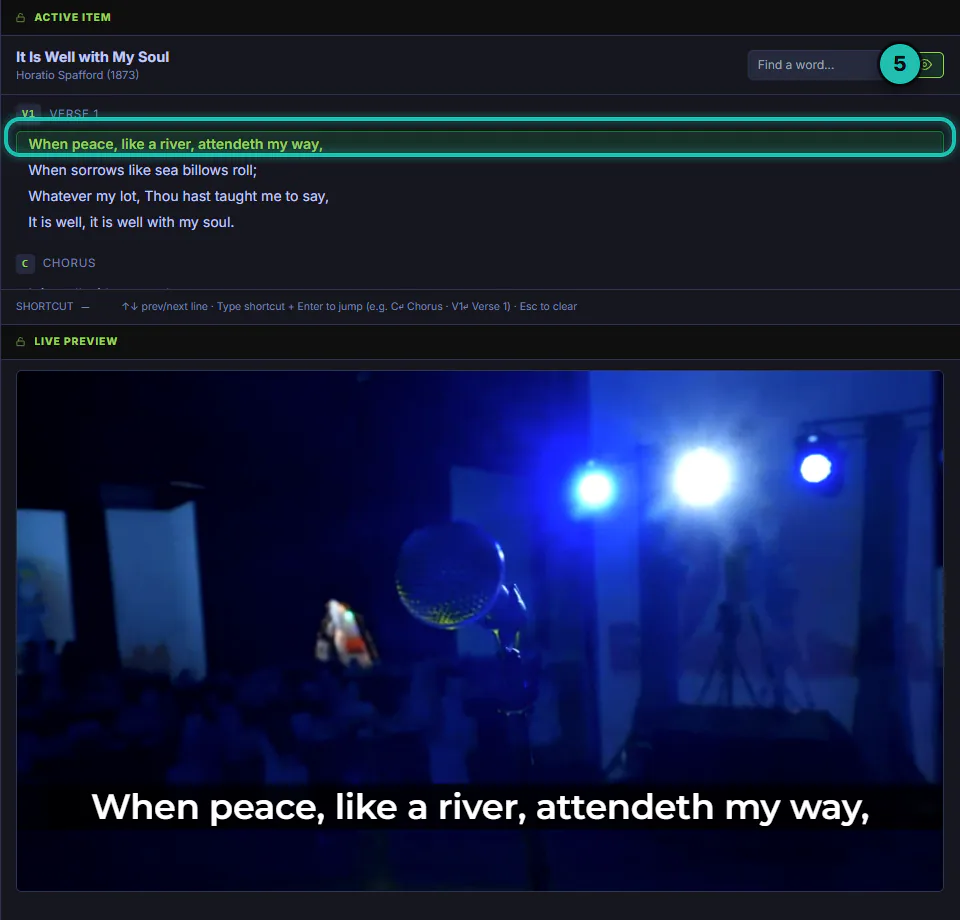
Take a camera live in the Camera tab; it becomes the picture behind the words. Then click the song's first line in ACTIVE ITEM. Automation only runs while a song is on the screen over a live camera.
Step 6: Let it switch
Step through the song as usual. When the section changes, Automation cues the next camera, its phone buzzes, and it goes live as soon as its picture is ready. Every shot holds for at least 7 seconds; a change inside that time is skipped.
Step 7: Take over when you want
Tap or cue a camera yourself and Automation turns off; the button goes back to ○ Automation. Turn it on again whenever you want it back.

If it doesn't work
- The Automation button is greyed out. Auto-take on cue is off. Tick it first.
- Nothing switches. Automation only runs during a song over a live camera, with at least two cameras sending a picture. Bible verses, slides, pictures and videos never switch.
- Automation turned itself off. Someone tapped or cued a camera by hand. Turn it on again.
- One camera keeps getting skipped. Its picture didn't come up within 5 seconds, so it was left for a manual take. Check that phone.
- A switch I expected didn't happen. It came inside the 7-second hold, so it was skipped. The next change switches.