
Time: about 3 minutes · Plan: Free, every plan · You'll need: the Broadcasteer Studio and your songs in the Library
Build the shape of your service once in TODAY'S PLAN: the section headers, the songs you sing most, the reading, the welcome slide. Save it with Save › ▤ Template. Each week, Open › ▤ Template starts a fresh plan from it with every row in place. Swap the songs and the reading, save it under the date, and the template stays exactly as you left it.
Step 1: Start an empty plan and add the headers
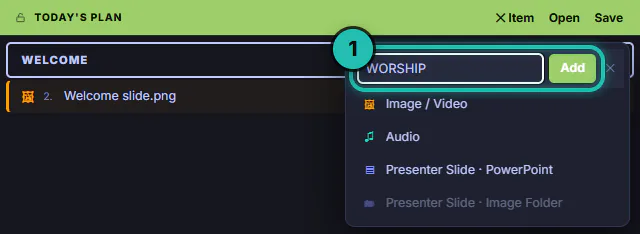
The Studio opens with Today's Plan empty, so build the template before you open this week's saved plan. On the Broadcast tab, press + Item on the TODAY'S PLAN bar, then Section Header. Type the name of the first part of your service in Header title (e.g. WORSHIP) and press Add or Enter.
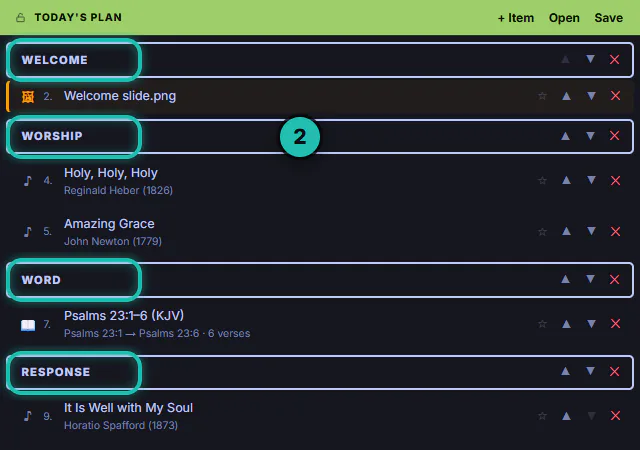
Do the same for each part. Lanternfield Church uses four: WELCOME, WORSHIP, WORD and RESPONSE. A header is a banner row in the plan, so the order of service reads at a glance on Sunday.
Step 2: Fill in what stays the same most weeks
Put in the rows you use most Sundays, even the ones that change now and then. Swapping a song later takes a few seconds; rebuilding the whole order every week is the chore this saves.
- Songs: type part of the title in Search songs... in the LIBRARY, then press Plan on the song.
- The reading: type it in the BIBLE search, like Psa 23. Click the first verse, Shift+click the last, right-click and pick Add Psalms 23:1–6 as one passage. One row holds the whole reading.
- A welcome slide: + Item › Image / Video and pick the picture.
Every new row lands at the bottom of the plan. Press ▲ on it (or drag it) until it sits under its header.
Step 3: Save it as a template
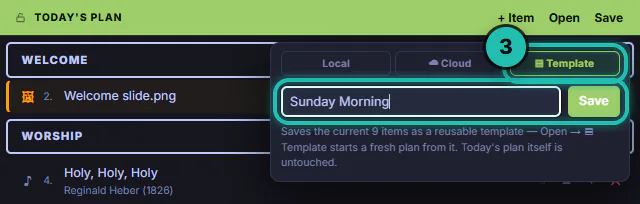
Press Save on the TODAY'S PLAN bar, then ▤ Template. Type a name in Template name... and press Save. Name it after the shape, not the date: Sunday Morning, Communion Sunday, Youth Night.
The line under the box tells you what happens: it saves the plan's rows (9 here) as a reusable template, and the plan you're looking at stays as it is. A green line on top of the plan confirms the template is saved.
If Save stays dimmed, Today's Plan has no rows yet.
Step 4: Next Sunday, open the template
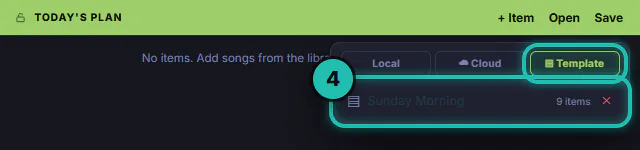
Press Open on the TODAY'S PLAN bar, then ▤ Template. Your templates are listed with the most recently saved first, each with how many items it holds. Click Sunday Morning.
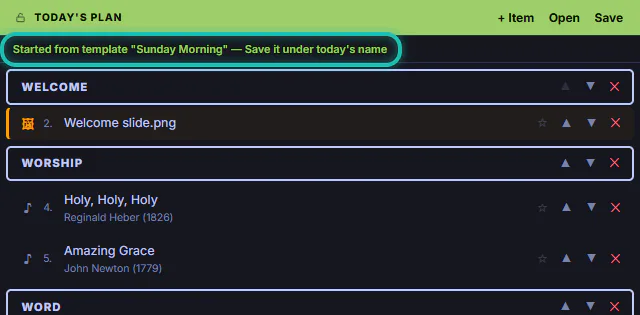
Every row of the template appears in Today's Plan, under a green line saying the plan started from the template and asking you to save it under today's name. This new plan has no name yet, so nothing you change here goes into the template.
Opening a template replaces whatever is in Today's Plan, so save anything you're still working on first.
Step 5: Swap the hymn and the reading
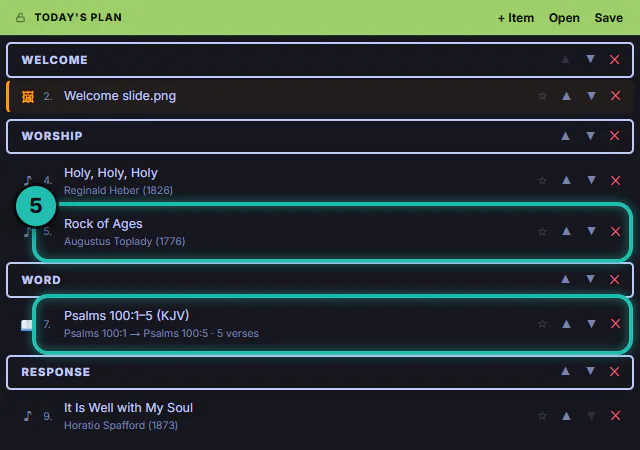
Press the red ✕ at the end of the row you're dropping. Here Amazing Grace makes way for Rock of Ages: press Plan on Rock of Ages in the LIBRARY, then ▲ until it sits under Holy, Holy, Holy.
The reading works the same way: ✕ on Psalm 23, add Psalm 100 from the BIBLE as one passage, and ▲ it up under WORD. Everything else, the welcome slide, the headers and the closing hymn, is already where it belongs.
Step 6: Save it under the date
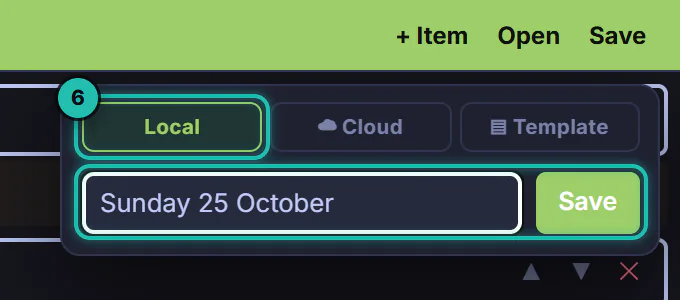
Press Save, then Local. Type the date in Plan name..., like Sunday 25 October, and press Save. From here it's an ordinary saved plan: it keeps your changes as you make them, and it's in Open › Local next to last week's.
Running that plan on Sunday, from the computer or from a phone, is its own tutorial (linked below).
Step 7: Change or delete the template
After Sunday's plan is saved, Open › ▤ Template still lists the template with its 9 items. Swapping songs in the dated plan never reaches it.
When the shape itself changes, open the template, make the change, and save it again with Save › ▤ Template under the same name. The Studio asks whether to overwrite the template with that name: OK replaces it, Cancel takes you back to pick another name.
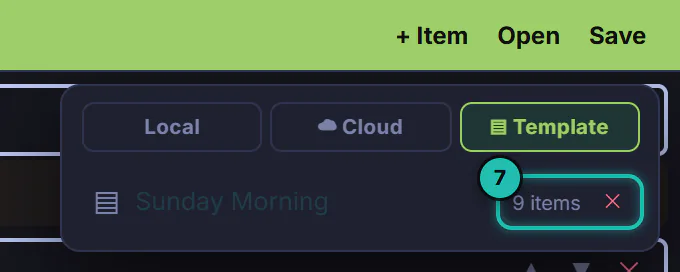
There's no rename. Save a copy under the new name, then press ✕ at the end of the old one's row. The Studio asks before it deletes, because a deleted template can't be brought back.
If it doesn't work
- Open › ▤ Template says No templates yet. Templates are kept on the computer they were saved on. Build the plan on this computer and save it with Save › ▤ Template.
- Save does nothing on the Template tab. It needs a name in the box and at least one row in Today's Plan.
- A slide row shows ⚠ and "file missing". The Studio can't find that picture or video any more, usually because the file was moved or deleted. Press ✕ on the row, add the file again with + Item › Image / Video, and save the template again under the same name.
- Your saved plan took the template's name. The name box on the Template tab also names the plan that's open, so saving a template while a saved plan is open renames that plan. Open it from Open › Local, then in Save › Local type its own name back in and press Save.
- It asks whether to overwrite. A template with that name already exists. OK replaces it with what's in Today's Plan now; Cancel leaves it alone so you can pick another name.