
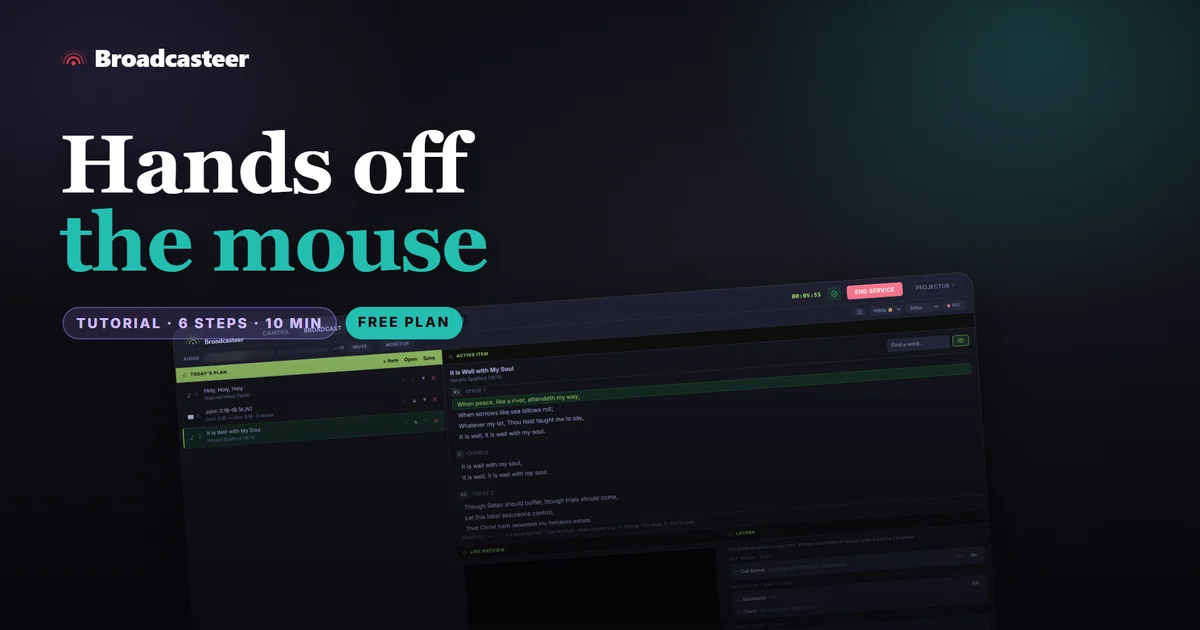
Time: about 10 minutes · Plan: Free, every plan · You'll need: the Studio with a song in Today's Plan, a keyboard, and a USB presentation clicker if you have one
There are two sets of keys. Shortcuts run the service on the Broadcast tab: → and ← walk Today's Plan, ↓ and ↑ step the lines (Page Down and Page Up do the same, and that's what a USB clicker sends), and typing a part's tag, like C or V2, jumps straight to it. Hotkeys are the function keys: in Settings › System & Network › Hotkeys you give F1 to F10 and F12 one job each, and they work from every tab.
Step 1: Open the Broadcast tab and click off any text box
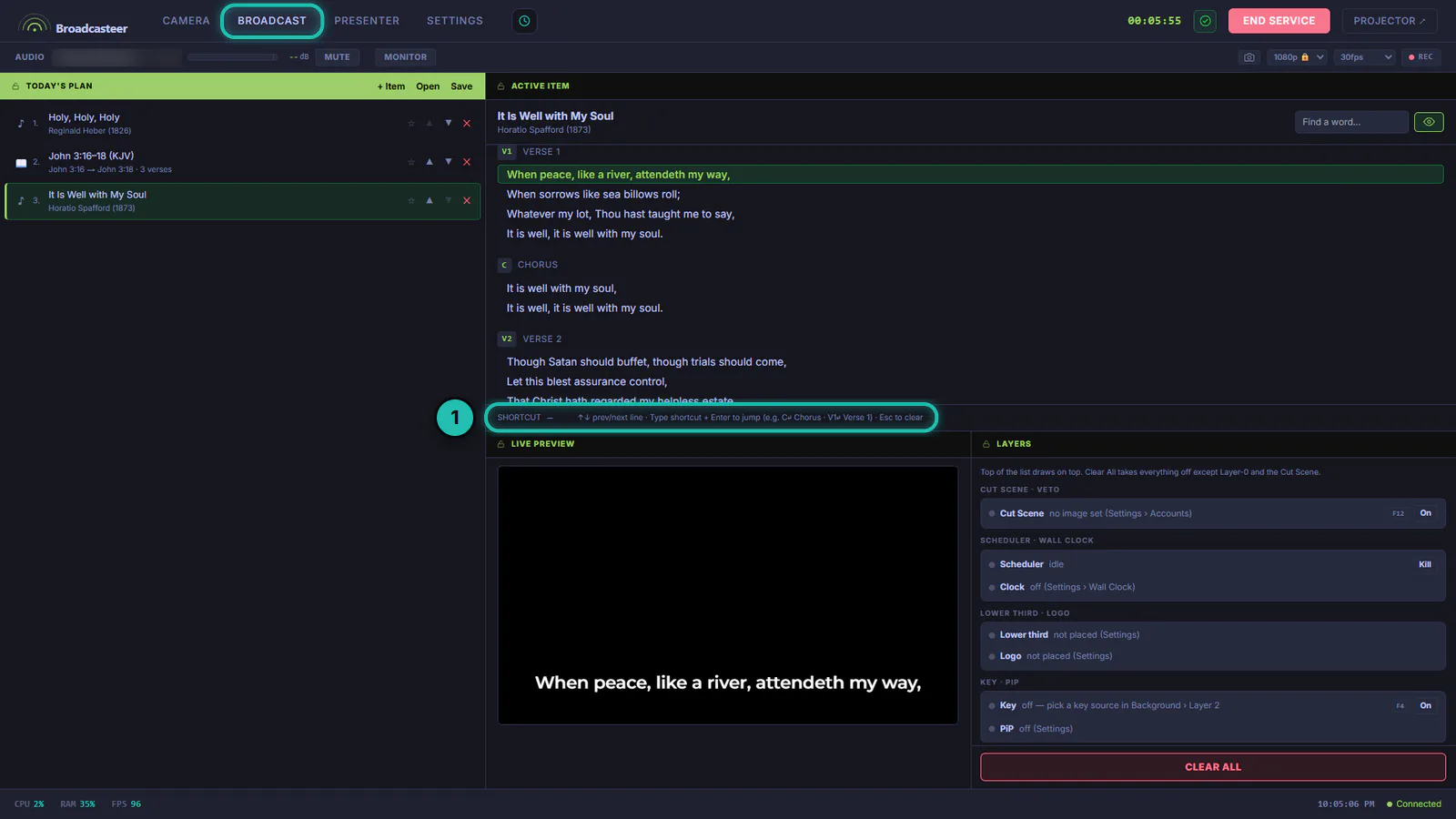
The arrows and the letters work on the Broadcast tab, and never while the cursor is in a text box, so typing a song title into a search can't move the screen. Click an empty part of the tab and the keys are live. The SHORTCUT bar under the Active Item shows any letters you type.
Step 2: Walk Today's Plan with → and ←
→ opens the next item in Today's Plan and ← the one before, just as a click on that row would. Section headers, notes and audio are skipped. A Bible passage puts its first verse up straight away. A song opens in the Active Item, and its first line goes up on the first ↓. With nothing open yet, → opens the first item.
To change the order without the mouse, Ctrl-click the rows you want to move, then Alt+↑ or Alt+↓ moves them as a block.
Step 3: Step the lines with ↓ and ↑, or a clicker
↓ sends the next line and ↑ the one before. Page Down and Page Up do exactly the same, and those are the keys most USB presentation clickers send, so a clicker works the moment you plug it in, with nothing to set up. With slides from Today's Plan in the Active Item, the same keys step the slides.
If the song's last line is up, ↓ stays there. Press → for the next item.
Step 4: Type a part's tag to jump to it
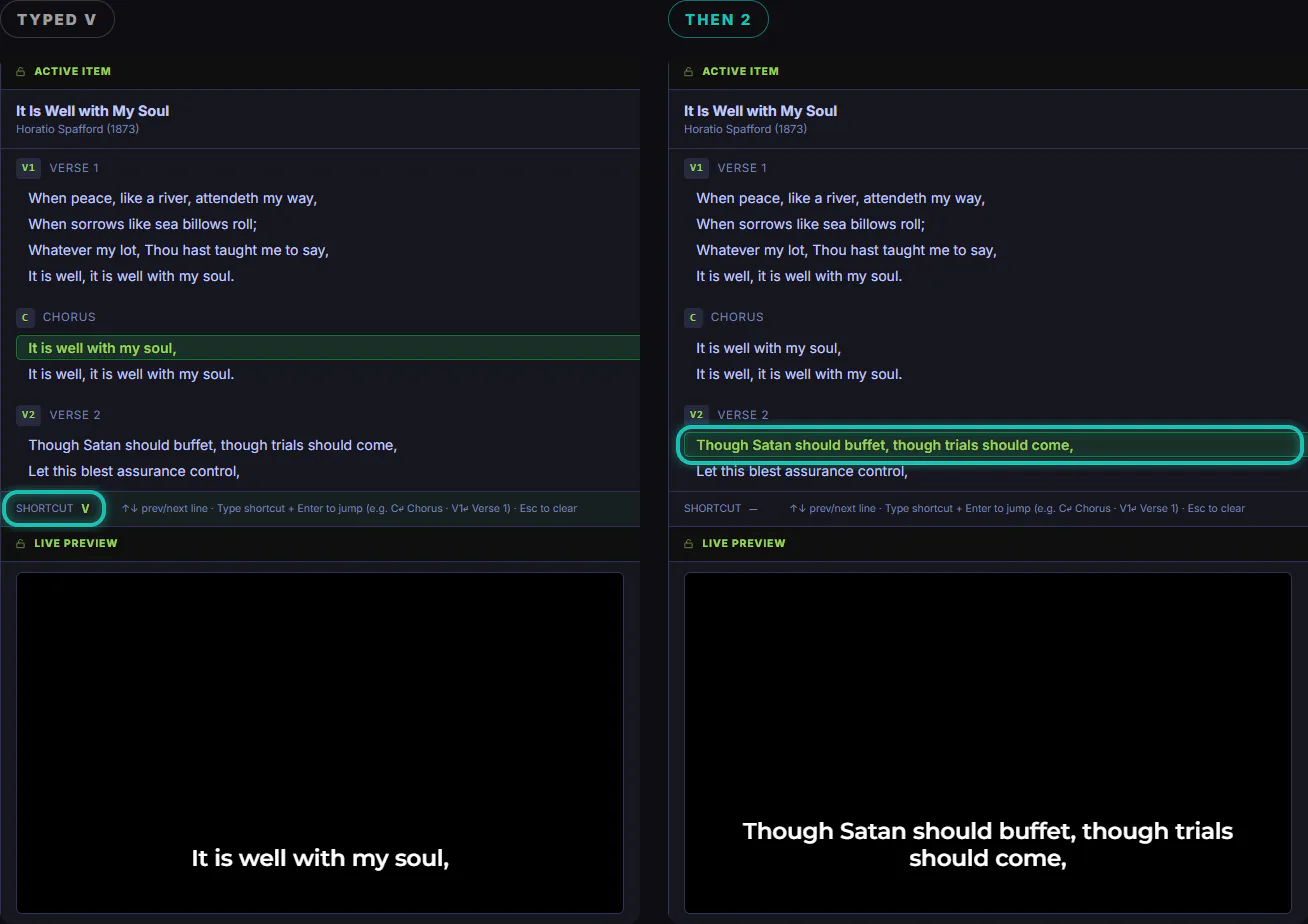
Every part of a song has a short tag beside its name in the Active Item: V1, C, V2. Type it and the live line jumps to the start of that part, wherever you are in the song. When only one part can match, it jumps the moment you press the key, so in most songs C is one keypress back to the chorus, however many times the band goes round.
When more than one part could match, like V in a song with three verses, the SHORTCUT bar holds the letter. Add the number, or wait half a second and it lands on the first one. Enter sends a tag you've typed in full without waiting, Backspace takes back a character and Esc clears it.
The tags come from Edit Song, in the small box beside each part's name, and you can change them. C finds a chorus tagged C1 and C1 finds one tagged C, so a library tagged both ways still works.
Step 5: Step through a Bible passage
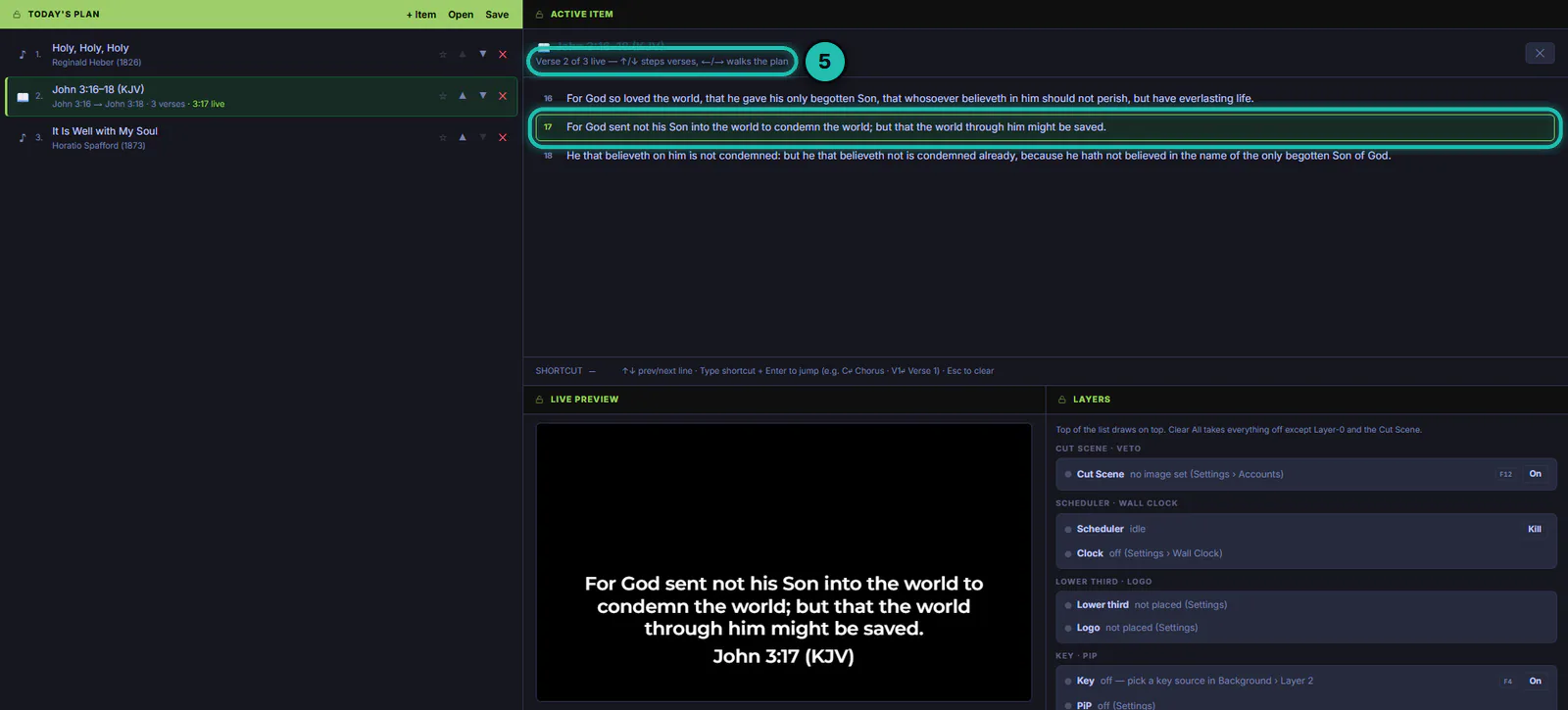
Add several verses to Today's Plan as one passage (in the Bible dock, select them, right-click and add them as one passage). ↓ then steps it verse by verse, and after the last verse ↓ moves on to the next item, so a clicker carries you through the reading and into whatever comes next. The top of the Active Item says which verse is up.
Step 6: Give the function keys a job
Hotkeys are the other set. In Settings › System & Network › Hotkeys, pick one action for each of F1 to F10 and F12; F11 stays the window's full-screen key. They work from every tab, but not while you type in a box or hold Shift, Ctrl or Alt, and a held key acts once.
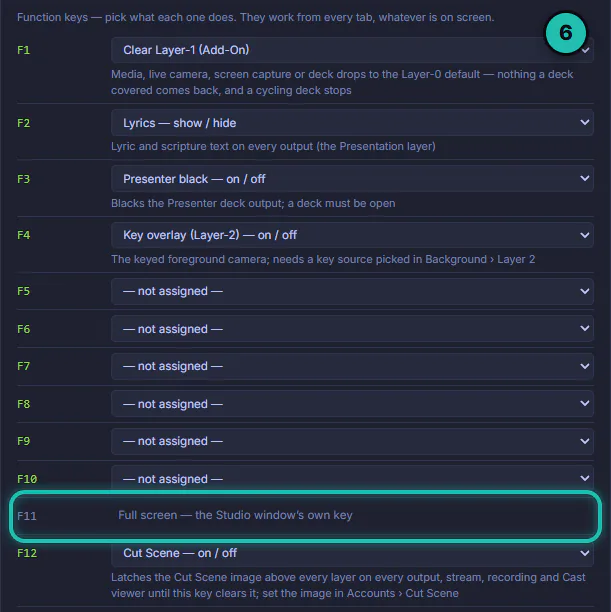
The seven actions:
- Clear Layer-1 (Add-On): the camera, picture, video or slides come off.
- Lyrics, show or hide: the words on every output.
- Key overlay (Layer-2), on or off.
- Presenter black, on or off, for an open deck.
- Cut Scene, on or off: your holding image over everything, set in Settings › Accounts › Cut Scene.
- Snapshot: a picture of what's on air, like the 📷 button.
- REC (fast): one press starts recording. Stopping takes a second press while REC counts down, so a stray key can't end it.
If a function key does nothing, it has no job yet.
If it doesn't work
- The arrows do nothing. Another tab is showing, or the cursor is in a text box. Click the Broadcast tab, then an empty part of it.
- C does nothing. A letter typed earlier is still waiting in the SHORTCUT bar, so the Studio read the two together. Press Esc and type C again.
- The letters do nothing on one song. It plays in Sequence (set in Edit Song), and the bar under the Active Item says the shortcut keys are off for it. Step it with ↓ and ↑, which follow the arrangement.
- The Broadcast tab says Plan Remote Active. A phone is running the plan, and the keys wait for it. Press Request Control and approve it on the phone.
- A clicker button does something odd. Only its forward and back buttons send Page Down and Page Up. Another button may send a function key or a letter, and the Studio treats it as that key.