
Time: about a 10-minute read · Plan: every plan; where a plan changes the need, it says so · You'll need: mostly what you already have
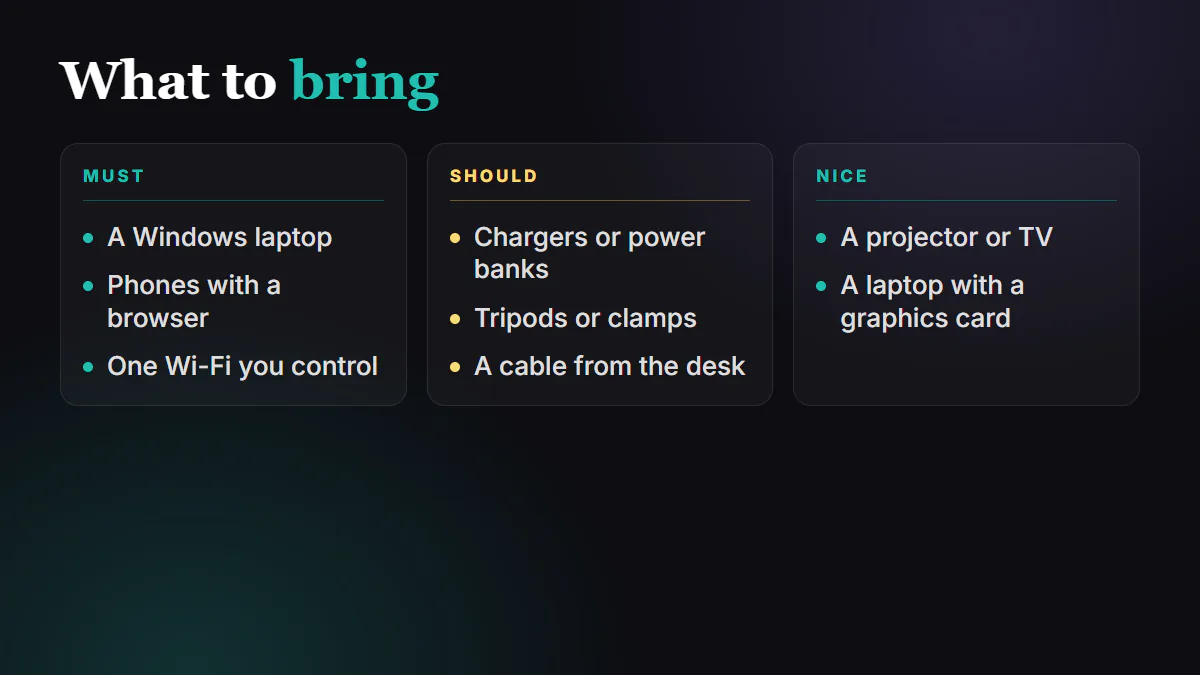
You need a Windows laptop or desktop you already own, phones with a browser and one Wi-Fi network you control. No new hardware: the phones do the filming, so the computer doesn't have to be special. The network decides how good your Sunday looks more than the laptop does.
Step 1: Start with the computer you already own
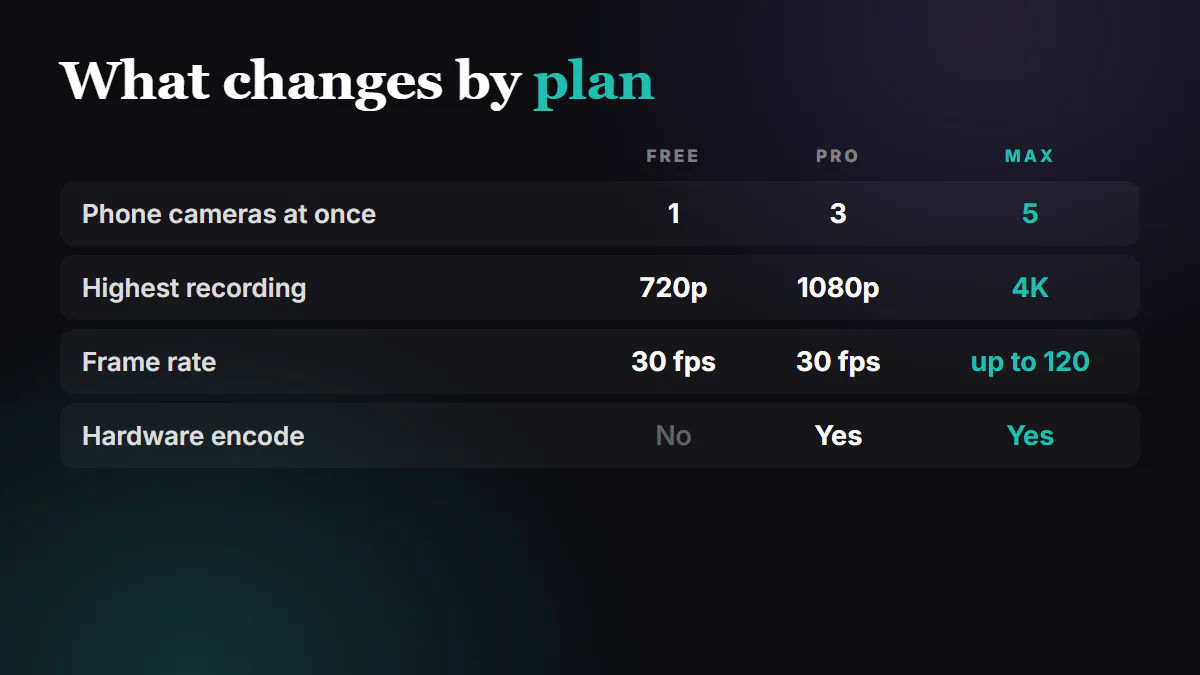
Broadcasteer installs on Windows, on a laptop or a desktop. The phones encode their own video, so a free single-camera service is light work for an ordinary machine. What a bigger plan changes is what you ask of it: more cameras, higher recording quality, a faster frame rate. A computer with a graphics card helps once you switch on hardware encode, which is PRO and MAX.
Step 2: Let the System Check confirm it
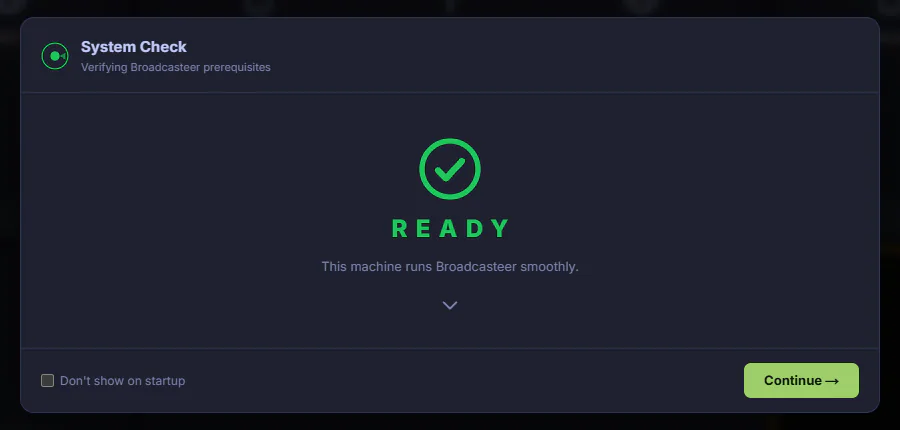
The first time the Studio opens, it checks the machine and says READY when everything it needs is in place. If it isn't ready, it tells you what to fix. That's your spec sheet... the real one, for your machine.
Step 3: Use the phones in the room
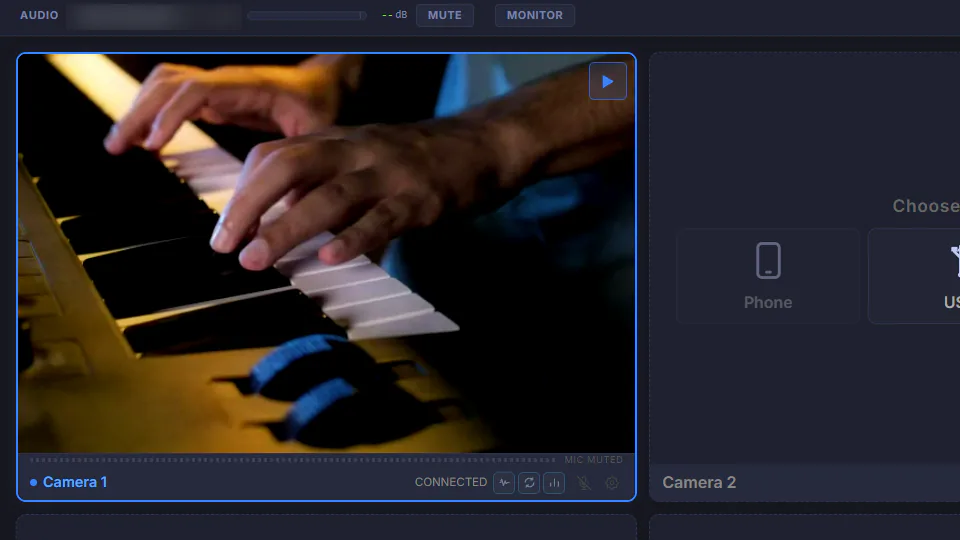
Any recent iPhone or Android with a browser can be a camera. How many at once depends on the plan: one on the free plan, three on PRO, five on MAX. Volunteers' own phones are fine. Nothing gets installed on them except, for iPhones joining over the Remote route, an authenticator app once.
Step 4: Put everything on one network you control
This is the part that matters most. Use a router you control, give the cameras their own 5 GHz Wi-Fi name if you can, and make sure client isolation (some routers call it AP isolation) is off, so the phones can find the laptop. Your internet only carries the one finished stream, however many cameras you run, so check the upload speed, not the download.
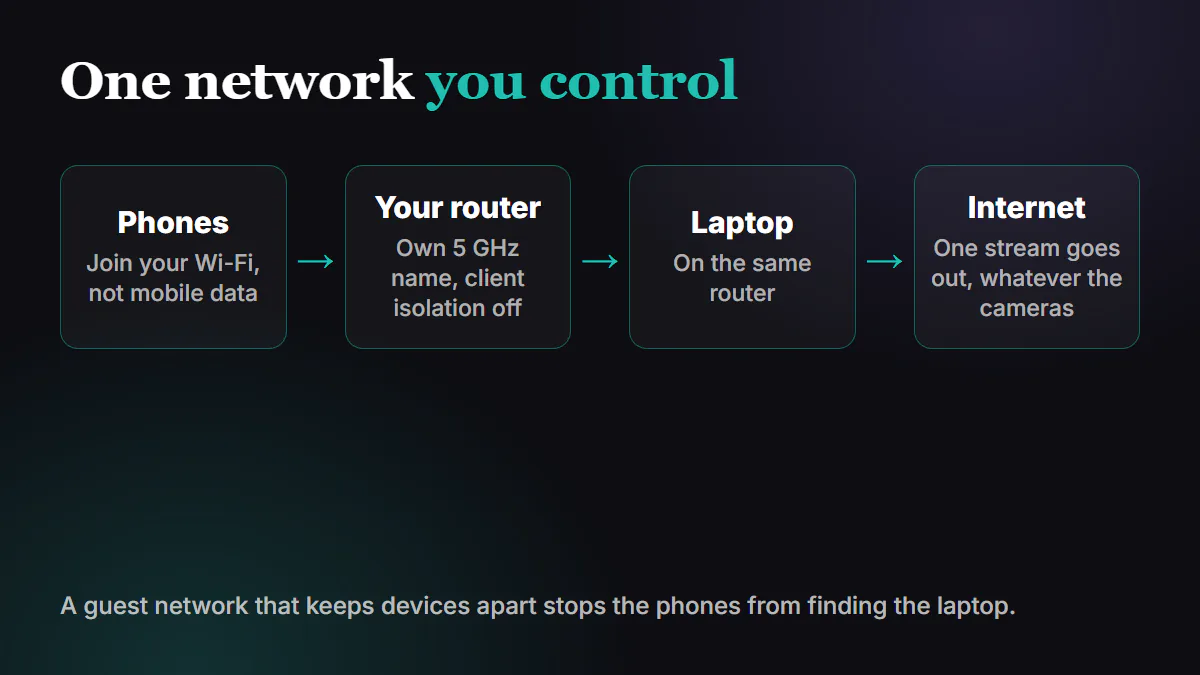
If you only have the church's guest Wi-Fi, a cheap router of your own on the booth desk solves most problems.
Step 5: Plug in and mount the phones
A phone keeps its screen awake while it's a camera, so bring chargers or power banks for anything longer than a short service. A tripod or a clamp per phone keeps the shot steady and the volunteer's hands free.
Step 6: Bring sound in from your desk
A USB or line feed from your sound desk shows up in the Studio's AUDIO list like any microphone. Pick it there and the stream gets the desk mix. For a small room without a desk, a phone's own microphone works too.

Step 7: Add a screen if you want one
A projector or TV on the computer's HDMI port, set to Extend in Windows display settings, becomes your output for lyrics, slides and cameras. PROJECTOR ↗ in the top bar opens the output window you can place on it.

Step 8: Leave room on the disk
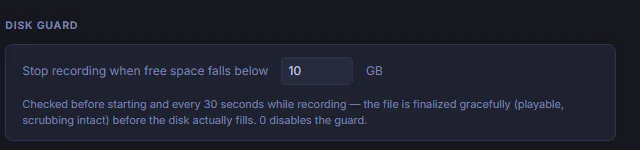
Recording is free on every plan, and recordings are big. Settings › Record › Disk Guard stops a recording before the disk fills, by default when free space drops below 10 GB, and the file stays playable.
Step 9: Skip the rest
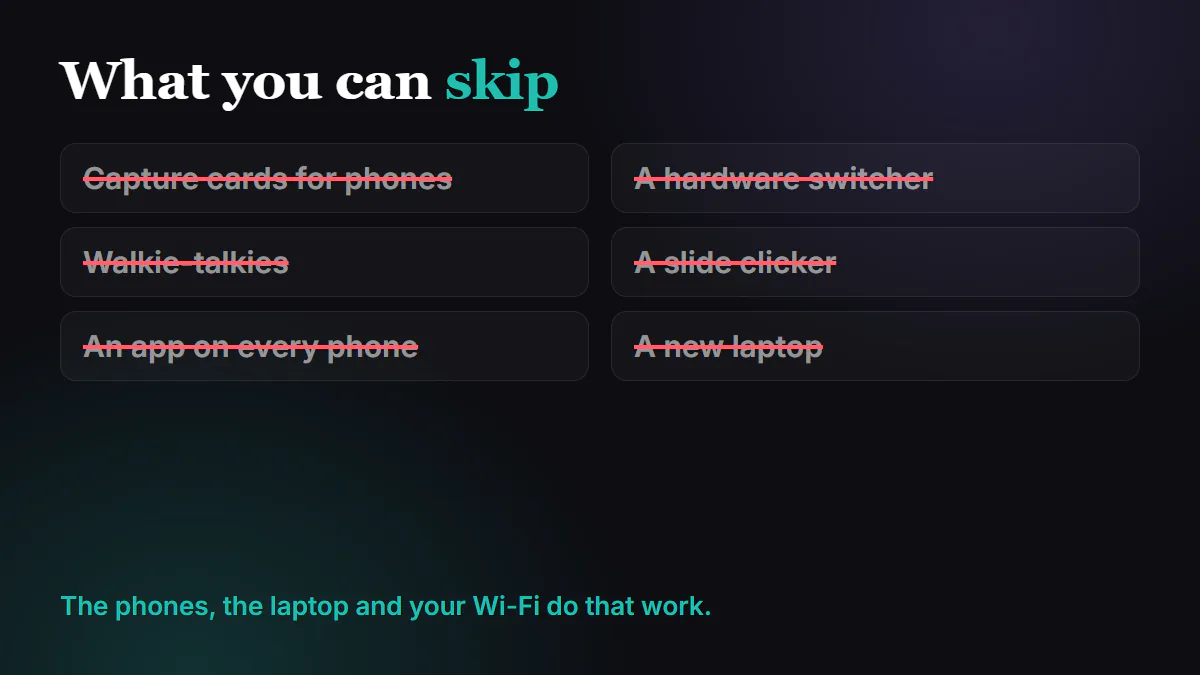
You don't need capture cards for phones, a hardware switcher, walkie-talkies, a slide clicker, an app on every phone or a new laptop. The phones, the computer and your Wi-Fi do that work.
If it doesn't work
- The phones won't join the church Wi-Fi. It's probably a guest network that keeps devices apart. Use a router you control.
- Cameras stutter when everyone arrives. The congregation's phones are sharing the same airtime. Give the cameras their own 5 GHz network and keep them near the router.
- The stream drops while the room is fine. That's the internet upload, not the cameras. Test the upload before Sunday.
- The laptop runs hot. Switch off what you aren't using. On PRO and MAX, hardware encode moves the stream onto the graphics card.